Uptime is one reliability signal, not a complete measure of the visitor experience.
Read what the host counts as downtime, then compare monitoring, incident response, exclusions, and remedies.
Measure availability and page speed separately; slow pages can also reflect images, scripts, caching, or third-party services.
Hosting uptime is a useful reliability signal, but it is not the whole story. A provider’s public promise, independent monitoring, support response, and your own site measurements each answer different questions. Review them together before trusting a host with business-critical pages.
How to Measure Hosting Uptime
Read the provider’s uptime terms carefully. Check what counts as downtime, which maintenance is excluded, how incidents are measured, and what remedy is offered if a target is missed. A service credit may not cover lost sales, so also review prevention and recovery.
Measure availability (uptime) from outside the provider’s network when possible. A status page helps, but independent monitoring can show whether visitors can reach your site. Keep a record of outages and response times instead of relying on one monthly summary.
For page speed, use Google PageSpeed Insights on the same key pages. Compare those results with uptime monitoring and the provider’s incident record.
Test performance as a visitor would
A website can be technically online and still feel slow. Test representative pages from locations near your audience, on mobile and desktop, and during realistic traffic. Review server response alongside image size, scripts, caching, and third-party services. A slow page may not be caused by the host alone.
Use a repeatable speed test, such as Google PageSpeed Insights, and compare before and after changes. Avoid comparing sites with different themes or content and then attributing the entire difference to hosting. Keep notes on the date, plan, location, and test configuration. When reading published comparisons, check which plan was tested and how often monitoring ran. A single speed score cannot predict long-term availability or performance during busy periods.
Look for a practical reliability process
Ask how the provider communicates incidents and planned maintenance. Check whether support is available when your team needs it and what escalation route exists for outages. Reviews that compare hosts often score performance, reliability, support, and ease of use separately; keep those dimensions separate in your own decision.
An availability percentage matters more when paired with backups and a tested recovery plan. Confirm the backup schedule, retention, restore steps, and any extra fee. Keep an off-provider copy of important data and make sure someone on the team knows how to restore the site.
Match monitoring to the site’s risk
A personal blog may tolerate occasional maintenance, while a store or booking site has a different cost of downtime. Define the pages and services that must stay available, including payment and contact flows. Monitor them separately so that an application error is not mistaken for full server downtime.
Set alerts that reach a person who can act, and avoid noisy thresholds that encourage teams to ignore notifications. Review incidents monthly: what failed, how long it lasted, what customers experienced, and whether a configuration or host change is justified. Hosting uptime should continue to fit the workload as the site grows.
It can detect issues sooner and support a response, but it does not prevent every outage.
Why can a site be slow while online?
Application code, media, scripts, caching, server resources, and network conditions can all contribute.
Turn Uptime Data into Action
For a business site, monitor the contact, booking, or payment pages and make sure outage alerts reach someone who can act. Test a backup restore before an outage happens.
The monthly headline price is only one part of a website budget.
Count first-term and renewal charges plus domains, email, SSL, backups, migration, security, design, and paid add-ons.
Compare the full year or contract term, and track renewal dates, cancellation windows, domain ownership, and mail-related DNS records.
Budget for more than the advertised monthly price. Check renewal terms, included features, and separately billed services before agreeing to a long term.
How to Budget for Web Hosting Costs
Start with your hosting plan. Then list any separately billed services, such as a domain, email, SSL certificate, backups, migration, security tools, or premium support. Some providers bundle certain features, while others offer them as add-ons or require a higher tier.
Web hosting costs also depend on the platform and the type of service. Shared hosting, virtual private servers (VPS), dedicated servers, and cloud infrastructure differ in resources and management work. A managed plan may cost more because the provider handles some upkeep; an unmanaged plan leaves more tasks to you. A website budget may also include a domain. Read how domain registration works and record its renewal date alongside hosting expenses.
Identify the factors that change the bill
Plan price can vary with server resources, number of sites, contract length, support level, renewal terms, and included features. Compare the monthly equivalent only after calculating the full amount due for the selected term. Check whether the promotional price applies only to the first billing cycle.
Consider design and content expenses too. A template, custom development, graphics, copywriting, integrations, and paid plugins can exceed the hosting bill. For a small site, these costs may be optional; for a store or professional service, they may be essential to launch safely.
Domain registration and hosting may be billed by different companies. Track the domain owner and renewal date separately, and keep mail-related DNS records intact when moving the site.
Model three realistic budgets
Create a basic, expected, and growth scenario. The basic version covers the simplest launch. The expected version includes the tools you will actually use. The growth scenario adds the next hosting tier or increased support if traffic or business requirements rise. This makes trade-offs easier to see.
Compare expenses over a full year or contract term, including renewals and add-ons. Record the billing date, cancellation window, and data-export process. This prevents a forgotten automatic renewal from turning a temporary discount into a surprise expense.
Use a comparison sheet before checkout
For every provider, record the initial payment, renewal rate, allowed sites, storage, backups, domain status, email, support, migration, and refund terms. Mark each feature as included, optional, or unavailable. Compare like with like instead of comparing a stripped-down plan with a managed bundle.
The budget is easier to control when one person tracks renewal dates, receipts, and plan details. Revisit the budget when you add a store, new team members, or higher traffic. The cheapest plan is not a saving if it forces an avoidable migration or outage.
Quick Comparison
Cost category
Questions to ask
Budget treatment
Hosting subscription
What is the renewal rate and term?
Track first term and renewal separately
Domain and email
Bundled, included, or separate?
Record annual renewals
Design and add-ons
Which plugins or services are paid?
Include launch and recurring costs
Frequently Asked Questions
Are domains always included with hosting?
No. Bundles vary and may apply only for a limited term. Verify renewal and transfer terms.
Is a longer term always cheaper?
It may lower the monthly equivalent, but increases upfront commitment and can limit flexibility.
What hidden fees should I check?
Renewals, add-ons, migration, backups, email, premium support, and separate domain charges.
Build the Full-Year Budget
Record who owns each account and when it renews. That gives you time to review the budget before a higher bill or an expired domain disrupts the site.
Start with what the business site must do: inform visitors, capture leads, accept payments, or support multiple sites and a team.
Match the plan to your platform, traffic, email, integrations, maintenance skills, recovery needs, and support.
Budget for renewals and growth, and avoid paying for complexity you do not need.
Small business hosting should make a company website dependable without creating unnecessary technical work. A service site, online store, and multi-location business do not have the same needs, so compare provider support, recovery options, and upgrade paths alongside the monthly plan.
How to Choose Small Business Hosting
List what the website must do: publish service information, capture leads, accept payments, host several brands, or support a team. Then identify the site platform, expected traffic, email needs, and any integrations. This inventory prevents buying a plan that looks impressive but lacks a critical function.
The service should also be manageable for the people who maintain the site. A clear dashboard and easy-to-find backups may matter more than advanced server controls when there is no in-house administrator. If a developer manages it, confirm the tools they need are included. For a first-time site owner, this web hosting overview explains the basics; use the questions above to compare business plans.
Match hosting to the business model
Comparison pages cover providers such as IONOS, SiteGround, Hostinger, InMotion Hosting, and Liquid Web or Nexcess for different business profiles. Some listings emphasize scalability, user-friendly controls, support, storage, or managed ecommerce. Treat those as starting points and validate details for the exact plan.
A brochure site may fit a straightforward shared plan. A growing store may need stronger isolation, backups, staging, and support that understands its commerce platform. A multi-site business should verify the site-count limit and whether each site receives separate resources and management controls.
Protect revenue and reputation
For a business site, availability affects trust and lead generation. Ask how the provider reports incidents, handles urgent support requests, and restores data. Review SSL, account security, backup retention, and who is responsible for patching the server and application.
Before a busy season, send a support question, make a backup, and test a restore safely. Check key pages on a phone, keep a separate copy of critical content, and know how to reach the company that manages your domain if the host is down.
If business email is essential, consider using a separate email provider. A website outage or move is then less likely to disrupt both services. When changing hosts, check that the domain’s mail records still point to the email provider.
Budget for growth, not just launch
Compare introductory and renewal charges, contract length, add-ons, migration, email, and premium support. A cheap first term is not a reliable forecast of the cost after renewal. The plan should have a sensible path to more resources without a disruptive emergency move.
Choose the smallest plan that safely supports current needs, then define the signals that would trigger an upgrade. Those signals might include repeated resource alerts, slower checkout, sustained traffic growth, or a new feature that requires more control. Revisit the decision as the business changes. Small business hosting should continue to fit the workload as the site grows.
Quick Comparison
Business site
Likely hosting priorities
Verify before signup
Service or portfolio
Easy updates, forms, SSL
Email and backup terms
Online store
Recovery, support, stable checkout
Platform support and resource limits
Multi-site business
Site capacity, access controls
Per-site limits and upgrade path
Frequently Asked Questions
Does every small business need managed hosting?
No. It depends on technical capacity, site complexity, and how much maintenance the team can handle.
Is shared hosting enough for a business site?
It can be for modest needs, provided resources, support, backups, and security fit the workload.
What is the most important business hosting feature?
There is no universal answer; prioritize availability, recovery, support, and the site’s actual workload.
A Practical Business Choice
Choose a plan that keeps the tasks your business depends on, such as forms, bookings, or checkout, working. Make sure someone on your team knows how to restore the site.
Read More News
More small-business technology guides: HYPETRENDER.
WordPress plans range from standard shared hosting to optimized and managed services; labels do not guarantee the same features.
Check who handles updates, backups and restores, staging, SSL, caching, plugin rules, and support.
Hosting is only one part of site performance, so match the plan to your site setup and maintenance skills.
WordPress hosting is not one single product category. A provider may offer basic shared plans that run WordPress, optimized plans with additional tools, or managed services that take on more maintenance. Compare the actual support and limits rather than relying on a plan label.
What to Look for in WordPress Hosting
A standard plan may give you control over installation, themes, plugins, and updates. Managed WordPress hosting can bundle maintenance or performance features, but the included work differs by provider. Read what is automated and what remains your responsibility.
Compare backup and restore access, supported software versions, a staging site (a private test copy), a security certificate (SSL), caching tools that save repeat work, and plugin restrictions. Check your site against the official WordPress technical requirements before selecting a plan, especially if it uses older themes or plugins.
Compare options by site type
Provider comparisons mention WordPress.com, Hostinger, SiteGround, Hosting.com (formerly A2 Hosting), and Kinsta among options for different users. These names are not equivalent plans. Compare entry-level versus managed offerings and check whether the service supports the way you want to build and maintain the site.
A simple blog may value guided setup and predictable costs. An agency or team may need staging, collaboration, and reliable migration. A store may depend on backups, checkout stability, and responsive technical help. WordPress hosting should follow the site’s complexity, not a generic “best for everyone” label.
Treat speed as a system
Hosting affects how quickly the server responds, but page speed also depends on the theme, images, scripts, plugins, caching, and visitor location. A more expensive plan will not fix a heavy or poorly optimized site.
Check the provider’s data center locations, caching tools, and content delivery network (CDN). A CDN keeps copies of site files in several regions so visitors can load them from a nearby server. When comparing plans, test the same page with the same settings; repeatable results are more useful than a single promotional benchmark.
Plan updates, backups, and migration
WordPress sites need regular core, theme, and plugin maintenance. Confirm who performs updates, whether automatic updates can be rolled back, and how often backups are stored. A one-click installer is helpful, but it does not replace a tested recovery plan.
Before moving a site, back up the database and files, list DNS and email settings, and test the new installation before switching traffic. WordPress hosting support should explain migration boundaries, including whether it will move email, staging sites, and custom configurations.
Quick Comparison
Site profile
Useful priorities
Plan questions
Personal blog
Simple setup, backups, support
Are restores included?
Growing content site
Caching, staging, migration
Can the plan scale without a rebuild?
Online store
Recovery, checkout stability, expertise
What support covers your store plugin and other add-ons?
Frequently Asked Questions
Is managed WordPress hosting necessary?
No. It can save maintenance time, but a capable site owner may prefer a standard plan.
Does hosting alone make WordPress fast?
No. Server performance matters, but themes, plugins, media, and caching also affect speed.
How do I compare managed and standard plans?
Check version compatibility, backups, support, limits, staging, renewal terms, and migration help.
Choose by Maintenance Needs
Before paying extra for managed WordPress, list which updates, backups, and support tasks the provider actually handles. If you maintain the site yourself, check compatibility and test a backup restore.
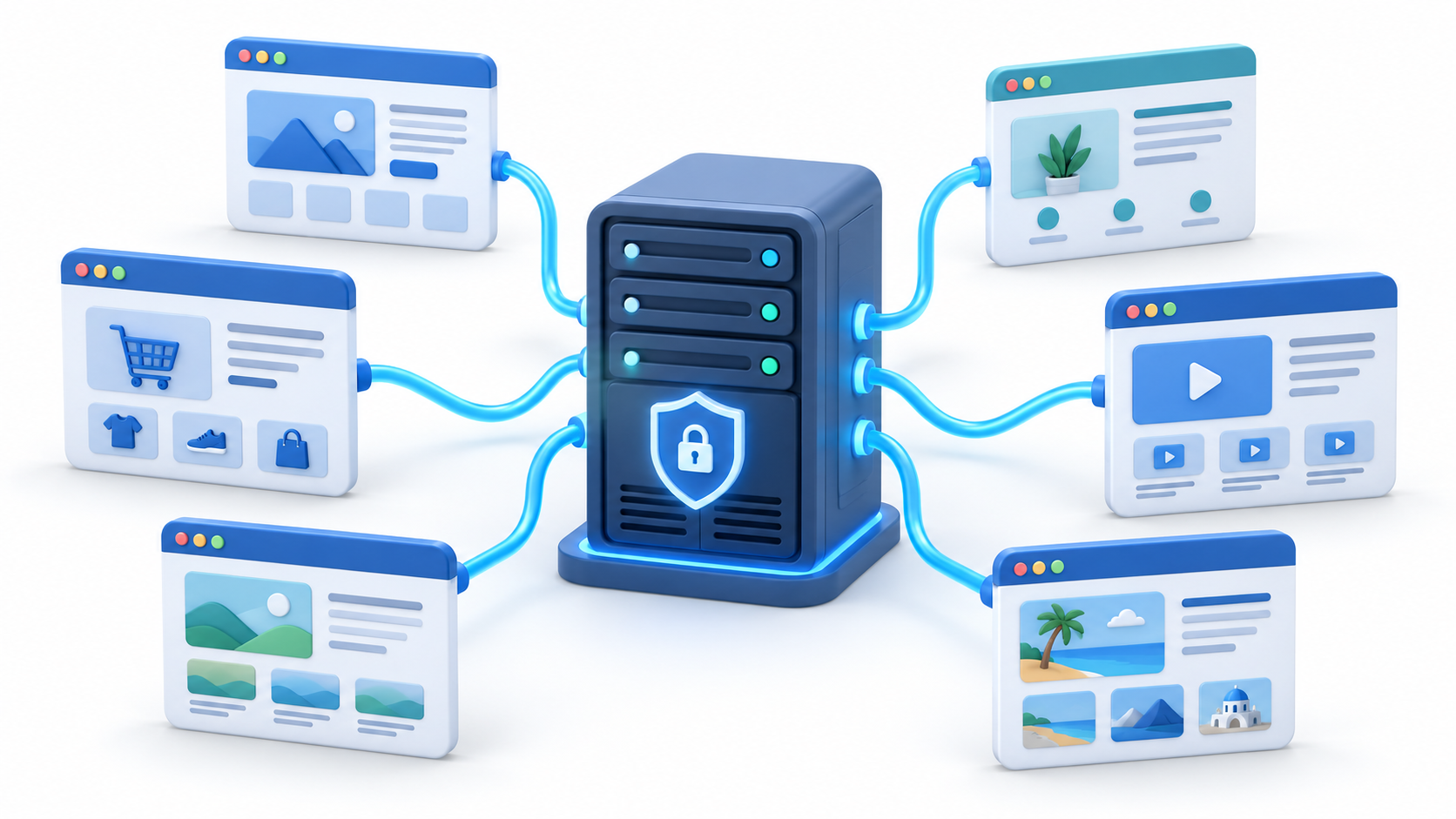
Shared hosting keeps setup simple by placing multiple websites on one server.
Compare resource limits, control panel, support, security, backups, and email because plans differ by provider.
Consider another hosting type when your site’s traffic, resource use, or need for control outgrows the plan.
Shared web hosting places multiple websites on a common server, making it an accessible option for many new sites. It can keep setup manageable and costs predictable, but performance and control depend on the provider’s limits, server management, and how neighboring workloads are handled.
How to Choose Shared Web Hosting
With shared web hosting, a provider allocates server resources among multiple customer sites. You generally do not manage the physical server, which can simplify setup. The trade-off is less control over the environment and possible limits on processing power (CPU), memory, storage, or how many tasks the server can handle at once.
A clear plan should explain how resource usage is measured and what happens if your website exceeds a limit. Also check security, email, database, and migration details. Shared plans differ in their features and support quality. For a quick refresher, this web hosting overview explains the shared-server model; then return to the plan limits and support details when comparing offers.
Compare the providers and features
Reviews of shared plans include Hostinger, SiteGround, GreenGeeks, IONOS, Bluehost, InMotion Hosting, HostArmada, and HostGator. Compare the exact shared plan, not just the provider brand. Providers may offer different controls, data center choices, promotional terms, and renewal prices.
Plans may advertise control panels such as cPanel or Plesk, Linux hosting, SSD or NVMe storage, website builders, or one-click platform setup. Decide which features matter. A beginner may prefer guided onboarding, while a developer may value control-panel familiarity and access to staging or supported software versions.
Recognize when shared hosting is enough
Shared web hosting can suit a personal blog, portfolio, brochure site, or early-stage business page with modest traffic. It is especially useful when ease of use and a low initial commitment matter more than full administrator control of the server or custom settings.
Consider moving to a different plan when traffic becomes consistent, resource warnings repeat, page speed deteriorates under load, or your application needs specific server settings. A provider should explain the upgrade path so the transition can be planned instead of rushed.
Review support and recovery
Ask whether support is available around the clock, which channels are offered, and what the team will actually troubleshoot. Check whether automatic backups are included, how often they run, how long they are retained, and whether restores cost extra.
A shared web hosting plan should not be the only copy of your site. Keep an independent backup, test the restore process, and document domain and DNS settings. That preparation reduces risk if a migration, plugin issue, or mistaken change makes the site unavailable.
Quick Comparison
Feature
Why it matters
Question to ask
Resource limits
Protect performance under load
How are CPU and memory limits enforced?
Backups
Enable recovery after changes
How often are backups stored and restored?
Control panel
Affects day-to-day tasks
Is cPanel, Plesk, or a custom panel included?
Frequently Asked Questions
Is shared hosting good for beginners?
Often, yes. It reduces server administration, but beginners should still learn backups and renewal terms.
Can neighboring sites slow mine down?
Shared resources can affect performance. Check limits and monitor your own site over time.
When should I upgrade?
Consider a move when resource limits, traffic, or application needs outgrow the current plan.
When Shared Hosting Fits
For a small site with steady traffic, shared hosting can keep setup simple. If resource warnings repeat or pages slow down, compare an upgrade and plan the move before visitors are affected.
Cheap hosting can suit a small website when its limits and support match your needs.
Compare the full upfront term and renewal bill, including domains, SSL, backups, email, and add-ons.
Check CPU, memory, processes, and file limits even when data transfer is described as “unmetered.”
Cheap web hosting can be a sensible starting point for a portfolio, blog, or small site, as long as the low price does not hide costly trade-offs. Compare the full term, renewal rate, available resources, backups, and support before choosing a plan based on its first-month offer.
How to Compare Cheap Web Hosting Plans
A low monthly price may require a long upfront term or rise at renewal. Compare the total amount due now with the renewal amount and billing interval. Also check refund rules, domain charges, and whether essential tools are included or sold separately.
Cheap web hosting should still provide the basics: SSL, a usable control panel, reliable backups, and a support route you can access. A plan that saves a few dollars but leaves you without recovery options can cost more after a mistake or security incident. If the concept is new, this overview of web hosting explains what hosting does; use the checklist above to compare each plan.
Compare plan types, not just brands
Budget comparisons commonly include providers such as Hostinger, HostArmada, Hostwinds, IONOS, and AccuWeb. Their offers can span shared plans, virtual private servers (VPS), multi-site plans, faster solid-state storage, and managed services. Those are not interchangeable: shared plans are often simpler, while VPS and managed plans can add cost and responsibility.
A low-cost plan works best when it matches the site’s actual workload. Some plans describe data transfer as “unmetered” but still limit CPU, memory, processes, or file counts under acceptable-use rules. Check the policy rather than treating that label as a guarantee.
A one-page portfolio does not need the same resources as a busy store. Check the provider’s limits for storage, databases, visits, email, and backups, and ask how those limits are measured.
Know where low-cost plans compromise
Entry plans may cap resources, limit the number of sites, restrict backups, or provide fewer advanced controls. Some low-cost offers may also ask you to manage updates or security yourself. Read the plan details and support documents before assuming that a feature is included.
A low price does not automatically mean poor quality, but it is a reason to verify the service details. Search for uptime reporting, migration policies, support hours, and a clear cancellation process. If a detail is hard to find before purchase, consider how difficult it may be to resolve after signup.
Choose for the next stage
Estimate your site’s needs over the next year, not just launch day. If traffic grows, can you add resources or upgrade without rebuilding? If you need several sites, confirm that the plan permits them. If you sell products, verify payment integrations and backup restoration options.
Compare three numbers: the total first-term payment, the first renewal, and the cost of add-ons you actually need. A good low-cost plan remains affordable after the promotion and still includes the capacity and recovery options your site needs.
Quick Comparison
Plan style
Often useful for
Check first
Entry shared
Blogs and basic sites
Site count, renewal, backups
Budget VPS
Higher control or variable loads
Server administration, resource guarantees
Managed low-cost plan
Users wanting help with maintenance
What “managed” actually includes
Frequently Asked Questions
Is free hosting a better deal?
Not always. Free tiers may impose limits, branding, or weaker support. Compare total value and portability.
Can a cheap host handle a small store?
Possibly, if resources, backups, security, and support fit the store’s traffic and platform.
Choose a web host based on your site, audience, budget, and how much maintenance you can handle.
Compare the exact plan’s reliability, support, resources, backups, and renewal terms; provider rankings are only a starting point.
Pick a plan that meets today’s needs and has a clear way to grow.
There is no single best web host for every site. Start with your audience, platform, budget, and comfort with maintenance. Then compare performance, reliability, support, and renewal terms. Those factors matter more than features you may never use.
How to Choose the Best Web Hosting
Start with the basics: dependable availability, responsive support, clear renewal terms, simple backups, and enough server resources for expected traffic. A low introductory price can be attractive, but it should not outweigh missing security, difficult migrations, or a confusing control panel.
Your shortlist should reflect the site platform. A beginner blog may need guided setup, while a store may need managed updates, a staging site (a private test copy), and support for its sales tools. Compare the help and limits included, not just the feature count. For a WordPress-focused project, consult the WordPress hosting directory to find compatible hosts; confirm current plan limits and renewal terms before buying.
A domain is your site’s address, hosting is the server that stores its files, and DNS sends visitors to that server. You can register the domain with one company and host the site with another, so keep access to both accounts.
Compare providers by use case
Provider comparisons feature a wide range of options, including Hostinger, Bluehost, IONOS, SiteGround, DreamHost, InMotion Hosting, Hosting.com, ScalaHosting, and Liquid Web. These names appear across different reviews, but they serve different needs. Treat a ranking as a shortlist, not a guarantee that every plan is right for every site.
For a new site, prioritize onboarding and a clear dashboard. For a growing business, examine upgrade paths, backups, and support availability. For a high-traffic project, check resource limits and whether the host can scale without forcing an urgent migration.
Read test results with context
Hands-on reviews can improve on marketing claims by running test sites and comparing speed, reliability, features, and support. Still, test conditions matter: a lightweight WordPress installation, server location, caching setup, and test window can all affect results. Look for the method, not only the headline score. A useful report identifies the plan, test period, test locations, monitoring interval, and traffic or load level, and explains its limitations.
Before trusting a score, check whether the reviewer tested the plan you would buy, shared recent results, and explained the limits. Treat “fastest” as a claim unless the test method supports it.
Make a short final checklist
Before buying, confirm the renewal price, billing term, storage and traffic limits, backups, a valid site security certificate (SSL), email, migration help, and cancellation rules. Ask support a practical pre-sale question. The quality and clarity of the answer can reveal what to expect when a real issue affects your site.
Choose a plan that fits today’s traffic and has a clear upgrade path. Back up the site before a move, then review its performance as your needs change.
Quick Comparison
Need
What to compare
Example providers in reviews
New personal site
Setup, support, clear limits
Bluehost, Hostinger
Growing business
Scalability, backups, controls
IONOS, SiteGround
Heavy or complex site
Resources, managed support
Liquid Web, InMotion
Frequently Asked Questions
Is the highest-ranked host always the best choice?
No. Rankings depend on test methods and priorities. Match the plan to your site, audience, and support needs.
Should I choose a host based only on speed?
No. Check uptime, support, security, backup policies, renewal prices, and resource limits as well.
Can I change hosts later?
Usually, but migration can affect email, DNS, and downtime. Back up the site and plan the move carefully.
Choosing a Shortlist
After comparing two or three plans, choose the simplest one that meets your needs and has clear renewal terms.
Antivirus software can help block harmful files, fake websites, and other online threats. The best choice depends on the devices you use, the protections you need, and the price after the first year. This guide compares 16 products covered in several independent reviews. Those reviews used different tests, so their scores should not be treated as one shared ranking.
Norton 360 was the most consistent all-purpose choice across the reviews. TotalAV stood out for ease of use, while Bitdefender offered broad security tools with efficient scanning. Aura and Surfshark may suit people looking for identity or privacy features. Other products focus on families, Mac computers, browser safety, or lower-cost plans.
How to choose antivirus software
Start with protection, then compare features and price. Real-time protection checks files and activity as you use your device. A firewall monitors network traffic entering or leaving a computer. Phishing protection warns you about fake sites or messages designed to steal passwords or payment details. Ransomware protection helps stop malware that locks or encrypts your files.
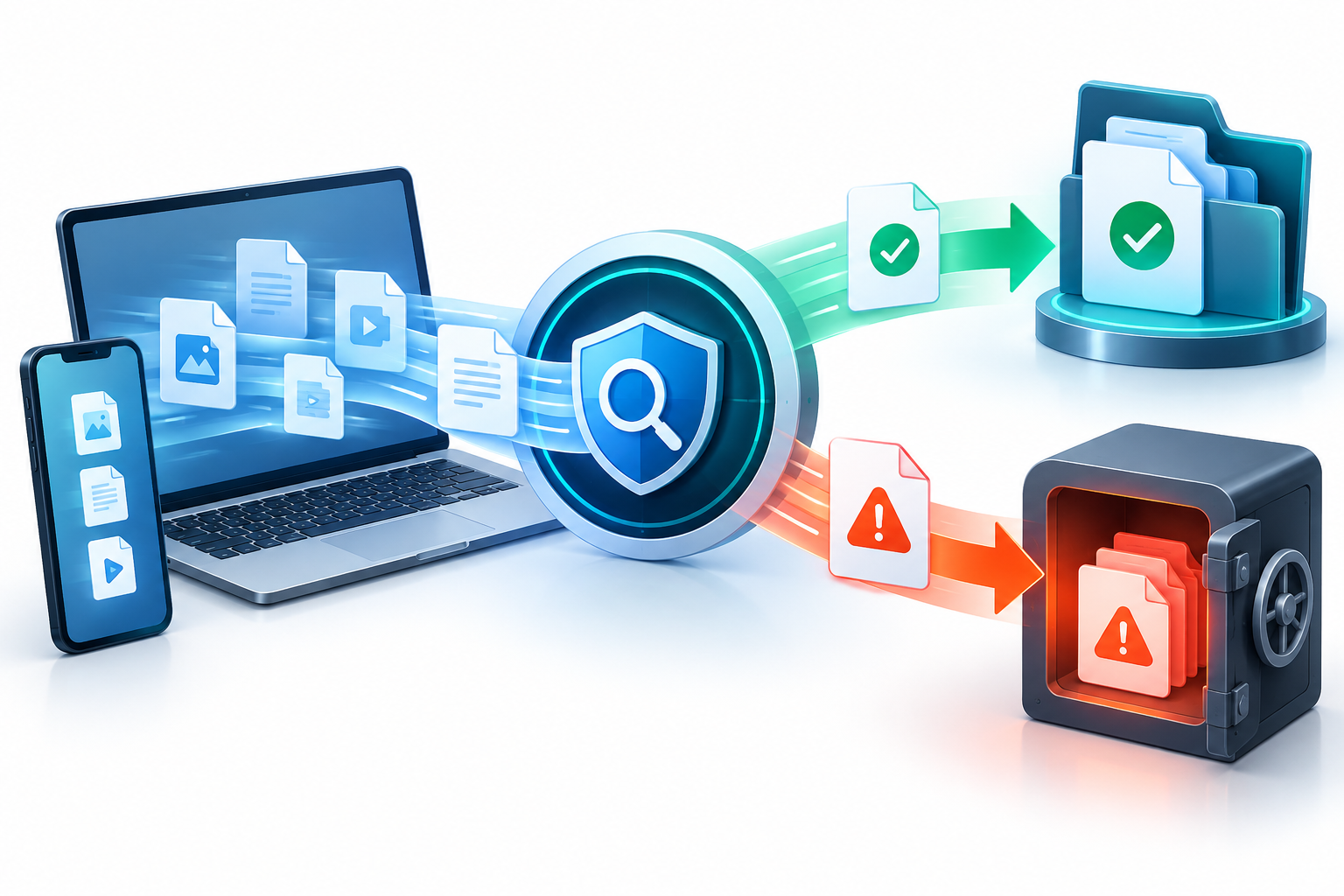
Real-time scanners check files as they arrive and isolate items they identify as unsafe.
Quick Summary
Best all-around fit: Norton 360, for broad protection and extra security tools.
Easiest to use: TotalAV, with a clear dashboard and web protection.
Broad feature set: Bitdefender, with cloud-assisted scans, phishing protection, and ransomware safeguards.
Identity monitoring: Aura, though coverage depends on plan and location.
Privacy bundle: Surfshark One, which combines antivirus and a VPN; data removal is an added One+ feature.
Other needs: Intego ONE is Mac-focused, while Guardio focuses on browser safety rather than full-device cleanup.
Before you buy: Compare renewal prices, device limits, and plan features. Some free plans do not include real-time protection. See prices and plan details.
Also check the product’s effect on speed, supported devices, and renewal price. A plan may cover Windows but offer fewer features on Mac, Android, or iPhone. A VPN can encrypt your internet connection, but some antivirus plans limit its data or require an upgrade. Identity monitoring, backups, parental controls, and password managers may also be limited to higher-priced plans.
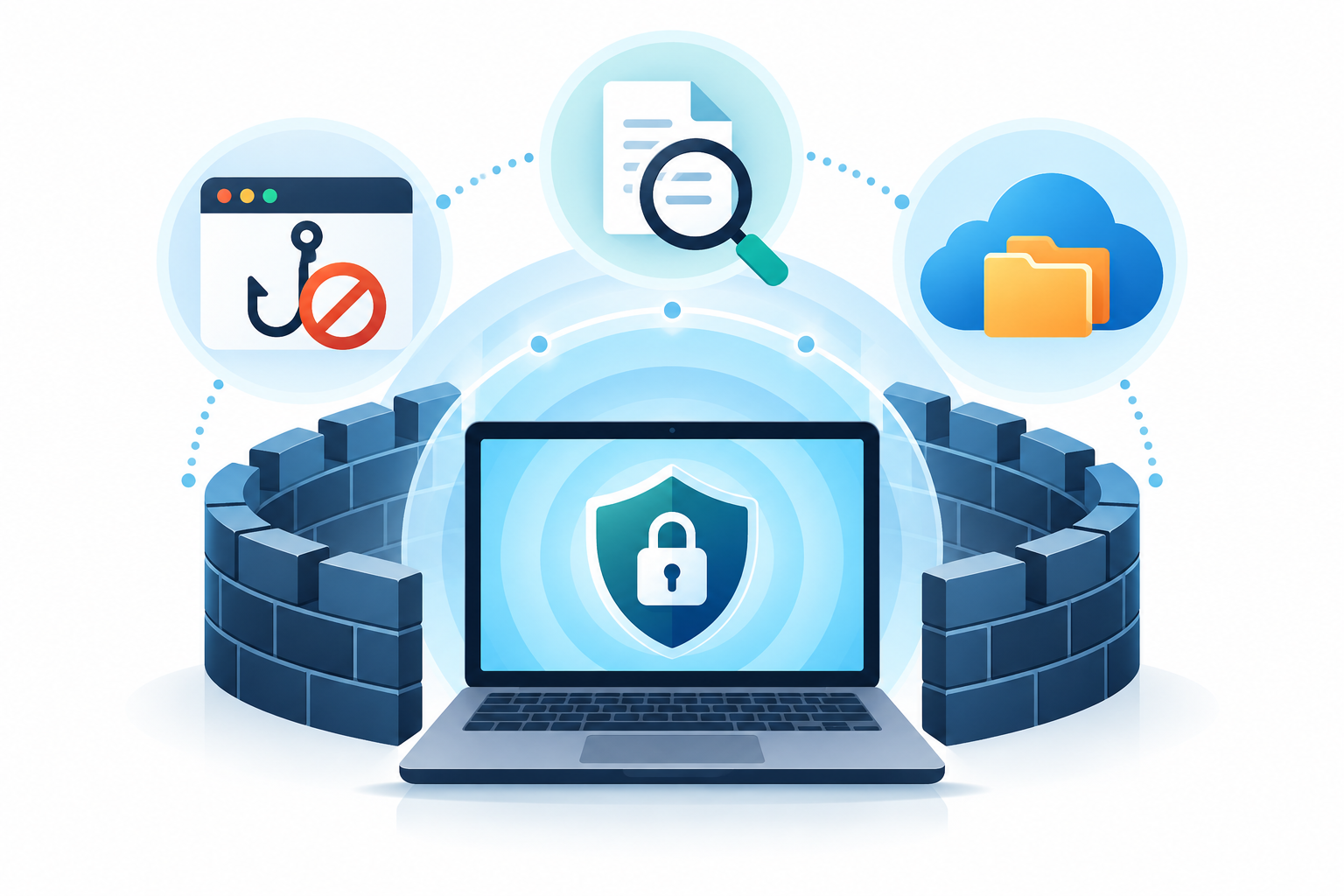
Security works best in layers, combining file scanning with web protection, a firewall, and safe backups.
Prices in this guide are snapshots from the reviews, not current price quotes. Some are first-year promotional prices; others are localized annual plan examples. Renewal prices, taxes, device limits, and plan names can change. Check the seller’s checkout page and refund terms before paying.
Quick comparison
Product
Best fit
Main strengths
Check before buying
Norton 360
Most households
Strong malware and phishing results; VPN, password manager, backup and family tools on selected plans.
Compare renewal price and plan-specific features.
TotalAV
Easy setup and web protection
Simple dashboard, site blocking, cleanup tools and optional VPN.
Free mode lacks real-time protection; paid prices can rise.
Bitdefender
Many security tools
Cloud-assisted scans, anti-phishing, ransomware safeguards and secure banking tools.
VPN data limits and features vary by plan.
Aura
Antivirus plus identity tools
Some plans combine antivirus with credit and identity monitoring.
Coverage and insurance depend on the plan and location.
Surfshark One
Privacy bundle
Antivirus, VPN and optional personal-data removal in one subscription.
No firewall; antivirus is not available on iOS.
Other options
Specific needs
Includes family plans, Mac tools, browser protection, free tiers and advanced controls.
Guardio is browser-focused; MacKeeper and Intego focus on Mac.
How the products were tested
The reviews used different methods and sample sizes. One program tested more than 30 products and selected 10. It weighted test results at 49%, editor assessment at 20%, core protection features at 20%, and value, compatibility, customer support, and extra features at 3%, 3%, 3%, and 2%. See the scoring method and product comparisons.
A second program tested 40 apps, including with EICAR files. EICAR is a harmless test file used to check whether security software detects a threat; it is not a real virus. That program also checked usability and price. See the full 40-app test and plan comparison. A third review reported testing 77 products, with 5,000-plus research hours, 48 experts, and more than 6,000 user reviews. See the full product testing and plan notes.
Detection percentages and scan times below come from individual reviewers’ tests. A result of 100% in one test does not mean a product will stop every threat. Results can differ with the device, test files, software version, and settings.
Scores and plan terms from one comparison
This scorecard keeps one review’s score, plan, and trial information together. Prices and limits are not necessarily the same in other countries or on other plans.
Product
Score
Starting annual price
Devices
Trial and refund
Platforms listed
Firewall
Norton
9.7/10
$29.99
1–10
14-day trial; 60-day refund
Windows, Mac, iOS, Android
Yes
Aura
9.5/10
$36
3–10
14-day trial; 60-day refund
Windows, Android, Mac
No
TotalAV
9.3/10
$19
3–8
Free version plus 7-day trial; 30-day refund
Windows, Mac, iOS, Android
No
Guardio
8.9/10
$119.88
5
7-day trial; 14-day refund
Chrome-focused
No
Surfshark One
8.9/10
$53.85
Unlimited
7-day mobile trial; 30-day refund
Windows, Android, Mac
No
McAfee
8.8/10
$29.99
1 to unlimited
30-day trial; 30-day refund
Windows, Mac, iOS, Android, ChromeOS
Yes
Bitdefender
8.7/10
$19.99
1–10
Free version plus 30-day trial; 30-day refund
Windows, Mac, iOS, Android
Yes
In that program’s tests, TotalAV blocked all 10 attempted EICAR downloads and detected test files sent by USB and local network. Its free mode did not include real-time protection. Aura detected 99.6% of the test items in a separate run. Guardio blocked about 80% of the flagged sites visited, but it cannot clean malware already on a computer. Surfshark blocked an EICAR download but missed a zipped sample in one scan. McAfee blocked test downloads in real time, though long scans and slowdowns were reported. Bitdefender blocked the test files and its free plan included real-time protection.
What each product offers
Norton 360
Norton was the most consistent overall pick. One test found all of its malware samples and completed a full scan in 14 minutes, with some slowdown. Depending on the plan, Norton adds a firewall, phishing protection, password manager, unlimited-data VPN, parental controls, dark-web alerts, cloud backup of up to 500 GB, and identity services. Some identity products are limited by country. Norton has no free plan. See the scoring method and product comparisons. See the full product testing and plan notes.
TotalAV
TotalAV is designed to be easy to use. Its features include blocking dangerous websites, an ad and tracker blocker, cleanup tools, startup management, and optional VPN and password manager bundles. A test reported that its system-cleanup scan found junk files, tracking cookies, and startup apps. Its free mode requires manual scans because it does not include real-time protection. Reviewers also noted that prices may rise after the first year. See the full 40-app test and plan comparison. See the full product testing and plan notes.
Bitdefender
Bitdefender combines cloud-assisted scanning with web protection, ransomware safeguards, a vulnerability scanner, and Safepay, a protected browser window for banking and shopping. Some plans add Scam Copilot, an AI tool that helps explain suspicious messages. One Windows lab test gave it 6/6 for protection, performance, and usability. Another hands-on test measured low scan use; a separate test measured higher CPU use during full scans. These results show that performance depends on the device and test setup. Many plans limit VPN data. See the scoring method and product comparisons. See the full product testing and plan notes.
Aura and Surfshark
Aura combines antivirus with credit, Social Security number, and financial-account monitoring on some plans. Identity coverage and insurance depend on the selected plan and location. Aura does not include a firewall in the comparison above.
Surfshark One combines antivirus with a VPN and breach monitoring. One+ adds Incogni personal-data removal and, in some locations, identity-theft insurance up to $1 million. Reviewers liked its simple app and flexible scans. They also noted that it has no firewall, no iOS antivirus, and limited ransomware protection on Windows.
Avast, AVG, McAfee, and ESET
Avast was rated highly for ease of use and has a free plan. One test found 100% of its sample malware, but scans took about an hour and caused minor slowdowns during demanding tasks. Paid tiers add features such as a firewall, webcam protection, and, on some plans, VPN or identity tools. Parental controls are a separate product. AVG was noted for quick scans and quiet background operation; its extras vary by plan.
McAfee is a family option with a firewall, VPN, identity tools, and parental controls on some plans. Certain subscriptions cover unlimited devices. Reviewers said real-time protection blocked their test downloads, but full scans could take hours and affect performance. ESET is aimed at people who want more settings. Its listed features include network analysis and protections for advanced threats; higher-end tools include encryption, extended detection and response (XDR), and multi-factor authentication (MFA). See the product comparison and testing notes.
Guardio and other specialist products
Guardio focuses on web browsers. Its extension warns about unsafe sites and phishing, and some plans monitor email or phone numbers for data breaches. It does not run a full computer scan or remove existing infections. Use it as a browser-safety layer, not as a replacement for a full-device scanner. See the full 40-app test and plan comparison.
Panda Dome offers flexible plans and a free tier. In one test its scanner found 95% of samples, while real-time protection blocked all test threats added by that reviewer. Full scans took as long as 3.5 hours. Extras include a Rescue Kit, firewall, and optional ransomware protection, parental controls, and cleanup tools. The free plan includes limited VPN data.
Intego ONE is focused on Mac protection. One test found all Mac and PC malware samples and scanned more than 300,000 files in under an hour. It includes a firewall, network tools, and Mac cleanup; higher plans add a VPN. It covers up to five Macs in the cited plan snapshot and does not include parental controls.
Avira Prime had a 100% detection result in one test. Its cloud-based scanner is paired with cleanup tools, a startup optimizer, game mode, privacy tools, and password manager. Avira Free includes real-time and ransomware protection, but most paid VPN plans have a monthly data limit. Avira Prime covered up to five devices in one plan snapshot.
Malwarebytes detected 95% of samples in one test. It offers exploit protection, a browser extension, web protection, and an unlimited-data VPN on a paid tier. The reviewer noted that it has no standalone firewall and that real-time ransomware protection was less effective. It is a simpler option, but compare its protection with the broader needs of your devices.
Trend Micro detected 97% of samples in one test and was strongest at blocking phishing sites, scam links, and unsafe web content. It also offers social-media privacy and online-banking protection. It has no standalone firewall, and reviewers wanted stronger cleanup tools.
MacKeeper is built for Mac. One test found 99% of Mac malware samples and removed more than 7 GB of junk and duplicate files. It also offers a VPN and cleanup tools. Reviewers noted that it lacks anti-phishing protection and a firewall, and asked for clearer information about VPN logging. It covered up to three Macs in one plan snapshot. See the scoring method and product comparisons.
Prices and plan details
Prices below were listed in separate reviews and may reflect different regions or promotions. The U.S. dollar prices are not directly comparable with the localized Korean won examples. Check the current renewal price before subscribing. Price ranges and localized plan examples are drawn from the editorial comparison, the plan comparison, and the product and plan tests.
Product
Review score
Price examples in the reviews
Norton
5.0/5
$29.99–$59.99 first year; localized plans ₩40,040/year for AntiVirus Plus, ₩66,750 for 360 Deluxe, and LifeLock from ₩133,500/year.
TotalAV
4.7/5
$19–$49 first year; localized Premium ₩25,370/year for up to 3 devices and Total Security ₩65,430 for up to 8.
Bitdefender
5.0/5; 100% in one test
$34.99–$64.99 first year; localized Antivirus Plus ₩46,720/year and Total Security ₩73,420.
Aura
4.5/5
$35.99–$59.99 first year.
Surfshark
4.5/5
$2.79–$22.85/month across plans; One was listed at $18.95 monthly, $3.59/month on a one-year plan, or $2.79/month on a two-year plan.
Avast
5.0/5; 100% in one test
$49.08–$69.48 first year; localized Premium Security ₩53,400/year and Avast One Gold ₩111,990/year.
AVG
5.0/5
$31.20–$59.99/year; up to 10 devices in one comparison.
MacKeeper
4.6/5
$71.40–$89.40/year; localized plans from ₩76,270/year.
McAfee
4.9/5
$39.99–$199.99/year in one comparison. Family plans were listed at $69.99 or $119.99 for year one, with higher renewals. Localized plans ranged from ₩53,400 to ₩267,010/year.
ESET
4.5/5
$49.99–$179.99 first year; up to 15 devices in one comparison.
Guardio
8.9/10
$119.88/year in one comparison; another listed paid plans from $9.99/month on an annual subscription.
Essential from ₩75,090/year; higher plans add cleanup or VPN.
Avira Prime
Not listed
Localized Internet Security ₩46,720/year; Prime ₩80,100.
Malwarebytes
95% in one test
From ₩53,400/year in one localized snapshot; up to 20 devices and a 60-day refund were listed.
Trend Micro
97% in one test
Localized annual plans from ₩53,340; Premium Security Suite examples were ₩66,690 and ₩73,370.
More plan details to compare
Norton: One plan snapshot listed 1–10 devices, a 14-day trial, and a 60-day refund. Cloud backup and identity features depend on the plan.
TotalAV: One full-feature plan was listed at $49 for the first year and $149 at renewal, with a 30-day refund. Check the renewal date and the real-time protection limits on the free tier.
Bitdefender: One comparison listed a free version and 30-day trial and refund. Unlimited VPN data requires a higher tier.
Aura: One comparison listed 3–10 devices, a 14-day trial, and a 60-day refund. Identity coverage varies by plan.
Surfshark One: One comparison listed unlimited devices, a 7-day mobile trial, and a 30-day refund. One+ data removal and identity coverage are plan- and location-dependent.
McAfee: One comparison listed a 30-day trial and refund. Family offers included Premium Family at $69.99 for year one, then $169.99/year, and Advanced Family at $119.99, then $269.99/year. Scan speed and device performance were concerns in some tests.
Avast: One localized snapshot listed Premium Security at ₩53,400/year for up to 10 devices and Avast One Gold at ₩111,990/year for up to 30. Paid plans had a 30-day refund.
Panda Dome: Premium adds unlimited VPN data and 24/7 support to the lower tiers. Plans in the cited snapshot had a 30-day refund and let buyers choose device coverage.
Intego ONE: Plans covered up to five Macs with a 30-day refund. The higher plans add SmartClean and a VPN.
Avira Prime: Prime covered up to five devices and had a 60-day refund in one snapshot. The free edition includes real-time and ransomware protection.
Malwarebytes: The cited plan snapshot included up to 20 devices and a 60-day refund. A standalone firewall was not included.
Trend Micro: One plan snapshot listed up to 10 devices and a 30-day refund; the most complete bundle adds identity tools and a VPN.
MacKeeper: Plans covered one to three Macs. The cited refund period was 30 days for annual plans and 14 days for monthly plans.
Final checklist
Make sure every computer and phone you want to protect is supported.
Check real-time protection, web and phishing protection, and firewall coverage.
Compare first-year and renewal prices, device limits, trial periods, and refund terms.
Choose bundled extras only if you will use them, and confirm which plan includes them.
Keep your operating system and apps updated. For practical advice on recognizing phishing, read the CISA phishing guidance.
Norton is a reasonable first choice if you want one broad security suite. TotalAV may suit beginners, and Bitdefender may suit people who want more security tools. Aura, Surfshark, and the other products may fit more specific needs. Before choosing, compare the features you will use and the full renewal cost. Explore more technology coverage on HYPETRENDER or visit the HYPETRENDER home page.
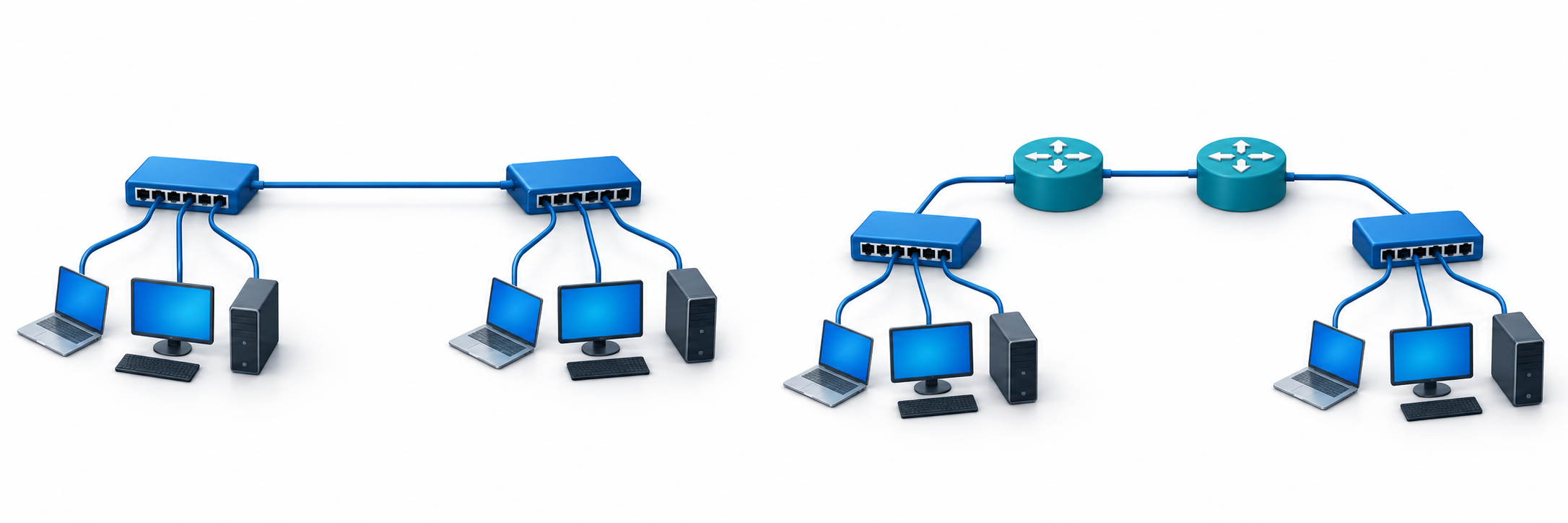
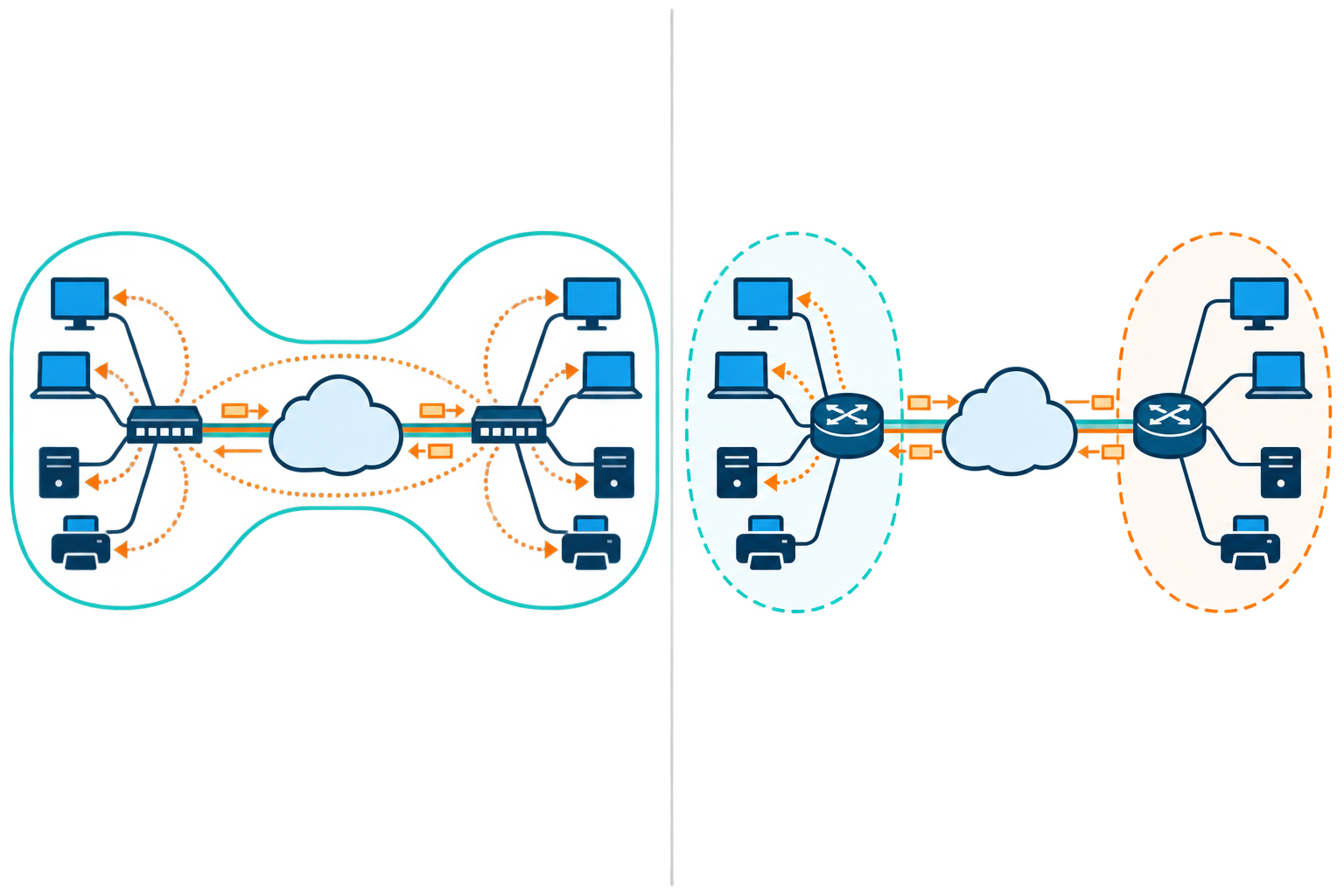
Layer 2 bridges Ethernet segments, while Layer 3 routes traffic between IP networks.
A Layer 2 VPN and a Layer 3 VPN both connect networks at different locations. They differ in what they connect: Layer 2 extends a local-style Ethernet network, while Layer 3 connects separate networks using IP addresses. This affects who manages traffic between sites, how much network chatter travels between them, and how easy the setup is to expand.
What a Layer 2 VPN Connects
A Layer 2 VPN carries Ethernet frames, the small units of data that devices send across a local network, between sites. The sites can then behave as if they share one logical local network, even when they are far apart. This can help older software that expects devices to be on the same network.
Layer 2 can join sites on one Ethernet network; Layer 3 keeps networks separate and routes between them.
Quick Summary
A Layer 2 VPN extends Ethernet so distant devices can act like one local network; a Layer 3 VPN routes between separate IP networks.
Layer 2 may support older apps that need one shared segment, but broadcasts and faults can spread across sites. Layer 3 keeps local network messages local and can scale more easily.
The comparison covers who manages routes, addressing, traffic behavior, growth, and operations. Layer 3 still needs clear address ranges and access rules.
Choose Layer 2 only when shared-LAN behavior is genuinely required, and plan VLAN separation, backup links, and fault containment. Choose Layer 3 for independent networks with controlled routing.
Before deployment, map sites, apps, addresses, latency, packet size, failover, and monitoring; test backups and recovery to understand outages.
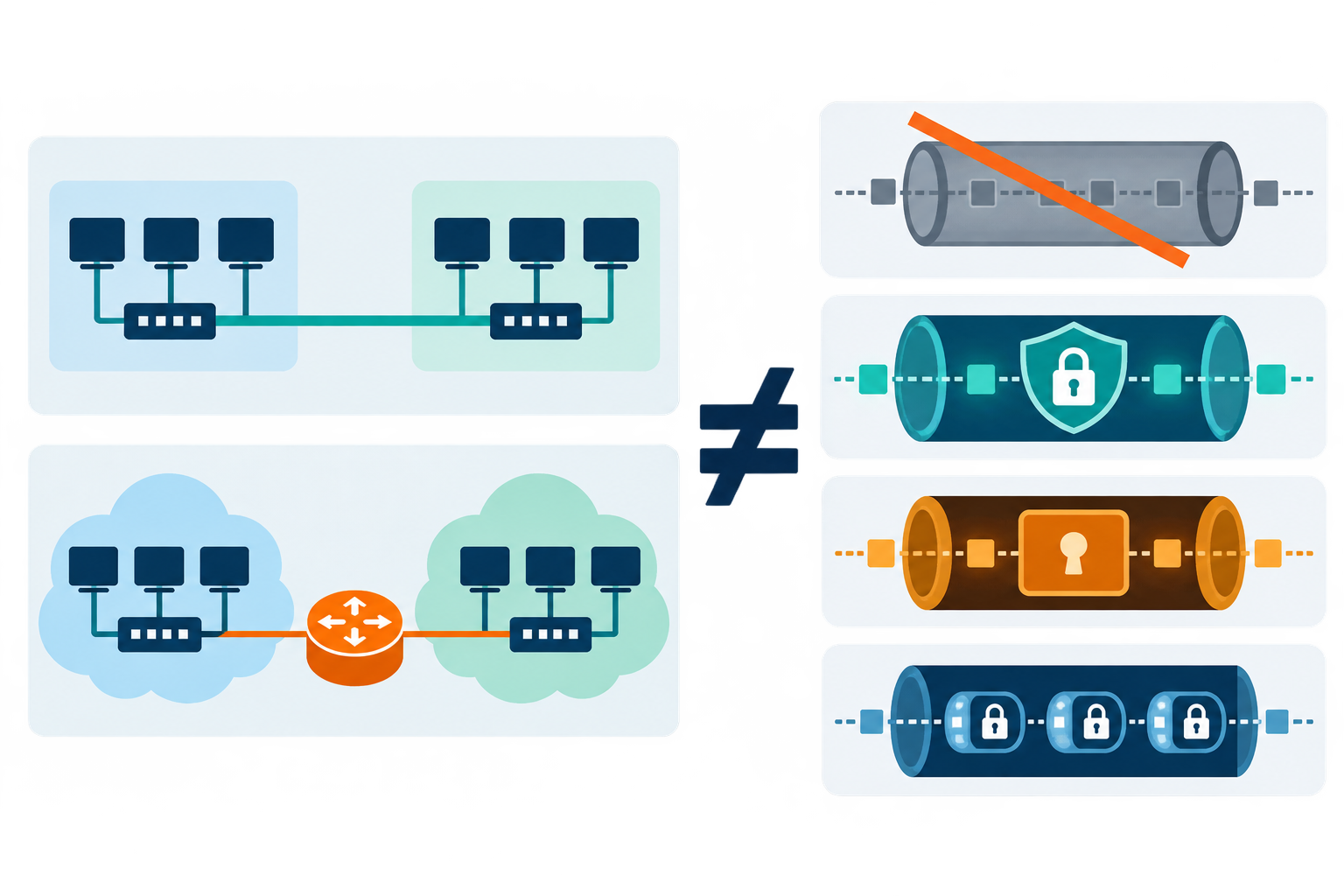
Network layers are not tunnel protocols. A private VPN does not automatically encrypt every link; use a current supported protocol and avoid PPTP for sensitive traffic.
With Layer 2, some routine network messages can travel across all connected sites instead of staying local. This extra traffic can make problems harder to find and can spread the effects of a setup mistake. Teams should plan how to separate groups of devices, add backup links, and handle outages before extending a local network.
What a Layer 3 VPN Connects
A Layer 3 VPN connects separate networks by using IP addresses and routing rules. The company’s network equipment and, in some services, the provider’s equipment share information about which network can be reached through each site. Each location can keep its own address range, and local network messages usually stay at that location. For a technical example, IETF RFC 4364 describes one common provider-based Layer 3 VPN model.
Layer 2 and Layer 3 describe network behavior; IPsec and WireGuard describe tunnel setup or protection.
Layer 3 can be easier to manage when many sites need to connect, but teams must agree who sets addresses, routing rules, and access limits. Each site should have a distinct address range. Decide what should happen if a connection fails. The service itself does not automatically encrypt data or decide which users may access each network.
Layer 2 VPN vs Layer 3 VPN
The comparison below highlights common design differences. Provider implementations and service names vary, so review the actual technical specification before deployment.
Design factor
Layer 2 VPN
Layer 3 VPN
Service behavior
Extends Ethernet connectivity
Connects routed IP networks
Who manages traffic routes
Often customer-managed end to end
Provider or customer team manages routes
Where local messages travel
Can span remote locations
Usually remains local to each site
Address setup
Can preserve existing subnet design
Requires routed prefix planning
Typical appeal
Older apps needing one shared local network
Scalable, policy-based inter-site routing
Main caution
Shared networks can be harder to manage
Route errors or overlapping address ranges
How to Choose the Right Service
Choose Layer 2 when an application truly needs devices at different sites to act like they are on the same local network. A VLAN is a way to separate groups of devices on a network. Before choosing this setup, check the maximum data size, backup connections, and how a problem at one site will be contained. Keep the shared network small and plan how to prevent loops, where data travels around in circles.
Choose Layer 3 when each site can keep its own address range and you want to control which locations can reach one another. The team must decide which networks each site can reach and what traffic is allowed. For a technical reference, RFC 4664 describes common Layer 2 and Layer 3 VPN service models.
Deployment Checklist and Security Notes
Before selecting a service, list each location, its address range, the apps that need to connect, acceptable delays, backup plans, and what must stay private. Decide who will monitor the connection and handle problems. In a controlled test, check how quickly traffic switches to a backup, whether large data packets work, and how service recovers after an outage. CISA and NSA’s guide to choosing and securing remote-access VPNs explains why updates and careful configuration matter.
Do not assume that a private VPN service automatically encrypts data across every transport segment. Carrier isolation and cryptographic confidentiality are different properties. If confidentiality is required over an untrusted network, specify encryption separately and validate the protocol and endpoint controls. A documented architecture reduces ambiguity and makes it easier to determine whether a Layer 2 VPN or Layer 3 VPN meets the actual business need.
VPN Connection Protocols, in Brief
Layer 2 and Layer 3 describe what kind of network is being connected. A connection protocol is the set of rules used to create or protect the VPN connection. You do not need to memorize these names to compare a service; check the provider’s security updates and whether it works with your devices.
Some older options are less safe: PPTP has known weaknesses and should not be used for sensitive information. L2TP does not encrypt data by itself, so it is often paired with IPsec. IKEv2/IPsec, OpenVPN, and WireGuard are commonly supported choices, but the provider and device settings matter. A protocol name alone does not prove an app is secure.
Some services use SSL/TLS, the same general family of encryption that protects HTTPS websites. They may open selected apps in a browser or create a wider tunnel. No protocol replaces strong sign-in, software updates, and limited access. For school or work, follow the approved setup.
Choosing a Protocol Without Confusing It With a Network Layer
Layer 2 and Layer 3 describe what kind of network the service connects. IPsec, OpenVPN, and WireGuard are examples of protocols that set up or protect the connection. They answer different questions; for example, a Layer 3 design can use IPsec.
Before choosing, check which protocols your school or workplace supports, which devices they work on, and whether the provider still updates them. Avoid PPTP for sensitive information because it has known weaknesses.
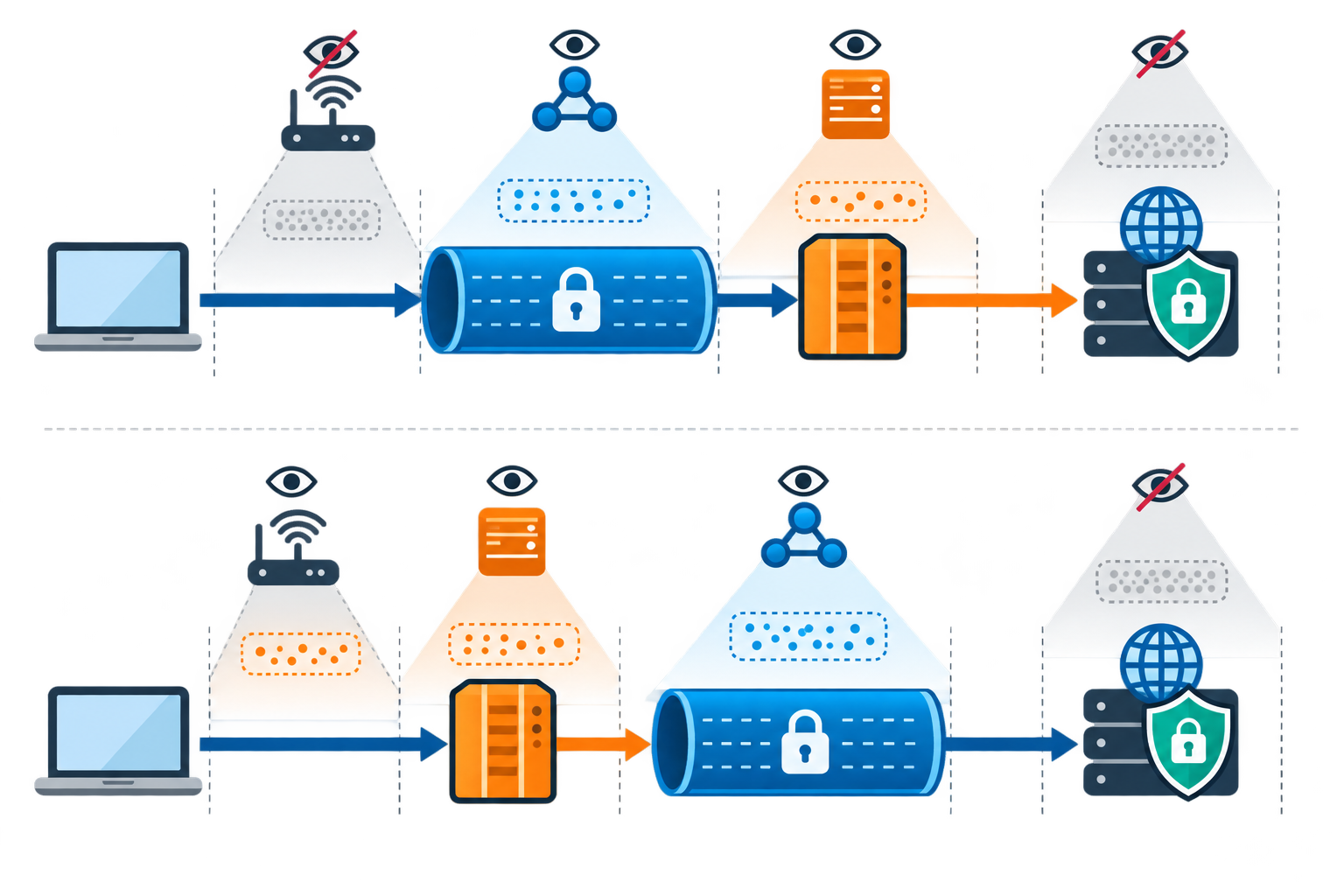
A VPN tunnel can carry traffic through a proxy relay, changing which service sees each step.
Quick Summary
A VPN proxy combination adds a routing step, but not automatic privacy; connection order affects what each provider can see.
It can help when an app needs a proxy or for approved regional testing, but extra hops can slow traffic or cause blocks.
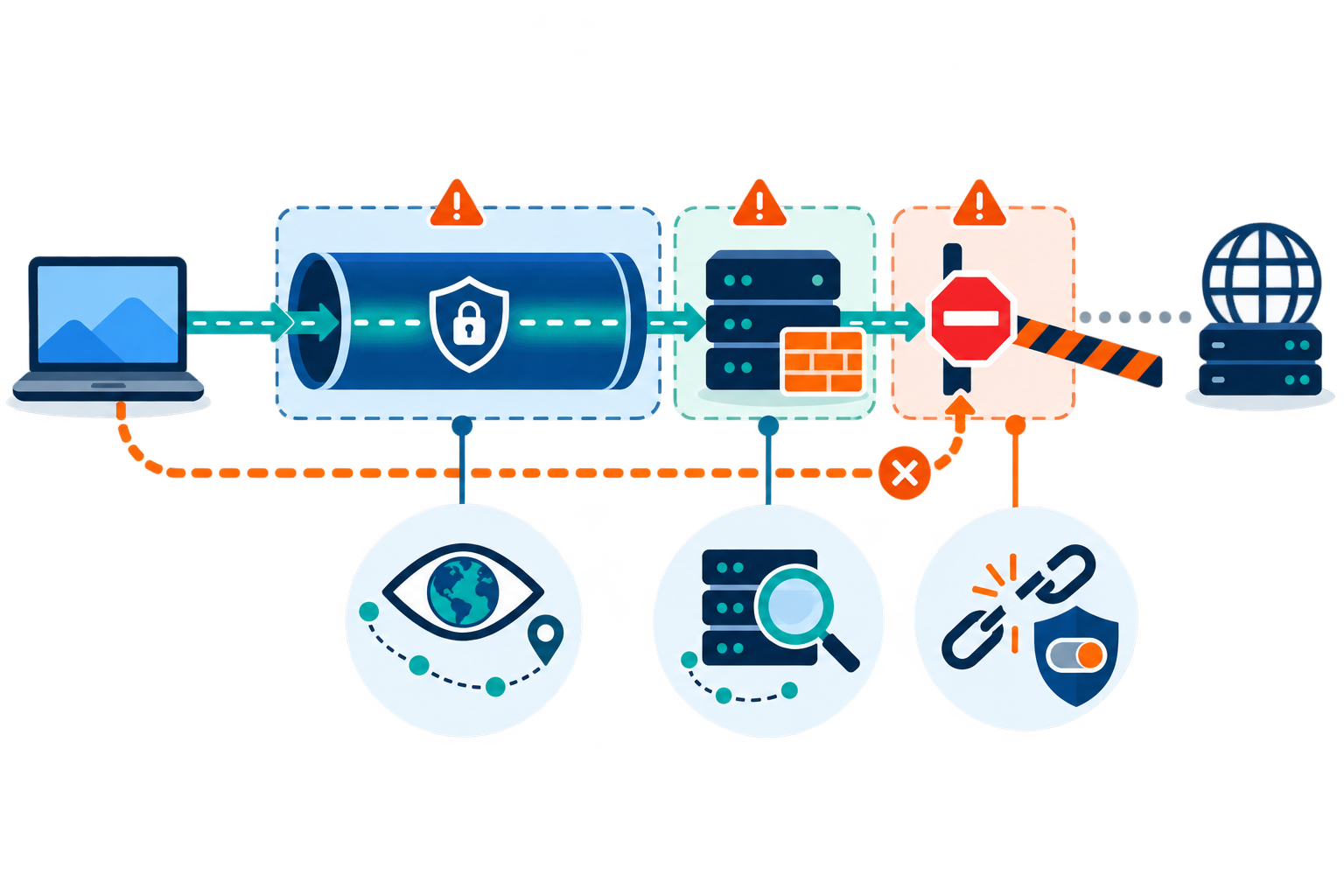
The article also covers VPN options for work and cloud and explains how to test IP and DNS leaks, app bypasses, and disconnect behavior. For more on safeguards, see our VPN privacy guide.
A VPN proxy combination puts both services in one connection path. This adds another step between your device and a website, but does not automatically make you safer. The result depends on which service connects first, what each one can see, and what happens if one disconnects. First decide what the extra step is meant to accomplish.
Understand the Order of a VPN Proxy Combination
In one common setup, an app sends its traffic through a proxy, while the VPN encrypts the connection from your device to the VPN server. The local Wi-Fi network can see that you connected to a VPN. The VPN company may see that you connected to the proxy, and the proxy may see which website the app contacts. The details depend on settings and encryption. MDN’s proxy guide explains how a proxy relays requests between an app and a website.
The VPN and proxy can see different connection details depending on their order.
The order can also be reversed. Each order changes which company can see your original address or the website you visit. A VPN encrypts traffic only between your device and its server; it cannot protect every step after traffic leaves that server. Draw the route before deciding what the setup hides.
Think of the setup as a chain: every service may see part of your connection, and each can fail in a different way.
When a VPN and Proxy Together May Help
A combined setup can be useful when a specific application must use a proxy while the device also needs protection on an untrusted local network. Developers may also need separate controls for regional testing and general traffic. In a managed environment, the combination may be required by a documented security or access policy.
For ordinary browsing, streaming, and remote access, the added layer may provide little value and can create more points of failure. Some services block proxy or VPN addresses, and some apps ignore system settings. A connection may slow down because of extra routing, congestion, and protocol overhead. If you cannot explain why each hop is needed, keep the design simpler.
Benefits and Trade-Offs at a Glance
The useful question is whether each service solves a specific problem. More services can also mean slower connections and more chances for something to go wrong.
Consideration
Potential benefit
Possible cost
Traffic scope
Separate routing for selected apps
Some apps may bypass the chain
Local network
VPN can protect the first hop
VPN endpoint still sees metadata
Location testing
Proxy can provide a targeted route
Destination may block the address
Privacy
Split visibility across operators
Trust shifts to multiple providers
Performance
May satisfy specialized workflow
More latency and failure points
Configure and Test the Chain Carefully
Document the intended route for each application, including DNS. Confirm whether the VPN client routes proxy traffic through its tunnel, whether the proxy supports the app’s protocol, and whether credentials are protected. Use trusted providers, unique credentials, and current software. Never paste sensitive data into a proxy configuration form or install unverified certificates to “fix” compatibility.
Test the public IP, DNS resolver, and route while connected, then repeat after disconnecting either component. Check whether a kill switch blocks direct traffic if the VPN drops. For IPsec-based deployments, RFC 4301’s architecture overview helps explain the role of security associations and policy, but consumer clients may use different protocols and interfaces.
A Practical Decision Rule
Use a single VPN when you need a broad encrypted path, or a single proxy for a controlled app-specific route. Add the second component only when you have a concrete requirement and can verify its configuration. Review each provider’s logging and retention practices; adding providers creates additional trust relationships rather than erasing them. The FTC’s VPN-app guidance recommends checking permissions, encryption, and data sharing before trusting an app with your traffic.
If you need corporate access, follow the company’s supported design. If the goal is privacy, remember that accounts, browser fingerprints, cookies, and endpoint security still matter. A well-tested VPN proxy combination can solve a specialized routing problem, but simplicity is often safer, faster, and easier to troubleshoot.
Use both tools only when testing shows the extra step is needed. Keep a simple diagram of the route and retest it after app updates or network changes.
Remote, Cloud, and Enterprise VPN Setups
VPNs are used in several different ways. A personal VPN service routes one person’s device through a provider’s server. A remote-access VPN connects an employee’s device to a company network. A site-to-site VPN connects office networks through gateways. A cloud VPN provides access to applications and networks hosted in cloud infrastructure, so a business may not need to route every worker back through one physical office.
Cloud VPN designs often include a gateway connecting an office network to a cloud network. High-availability designs use redundant gateways or tunnels so that one failure does not cut off access; a simpler single-gateway design may be easier to deploy but has fewer backups. Some cloud services advertise specific availability targets, but the actual service-level agreement and configuration determine what is promised. Failover, routing, firewall rules, and backup connections should be tested.
An enterprise VPN differs from a consumer VPN because a company needs central user management, role-based access, audit records, support, and predictable maintenance. A managed service may provide updates and vendor support for a subscription. A self-hosted VPN gives the organization more direct control but requires its own staff, hardware or cloud capacity, patching, monitoring, and incident response. Neither model is automatically cheaper: include staff time, licenses, hardware, and service support in the comparison.
Before rolling out a company VPN, a team should map users, apps, network capacity, and firewall rules; connect the service to the company’s sign-in system; test backup connections; and try it with a small group first. Larger organizations may link the VPN to their existing account and sign-in tools so employees can use familiar work accounts.
Zero Trust Network Access (ZTNA) is a related approach, not simply another name for a VPN. A traditional VPN may connect a user to a broader network after sign-in; ZTNA checks identity, device condition, and policy for access to a specific app or resource. Some organizations use both during a gradual transition, keeping VPN access for older systems while limiting newer cloud apps more narrowly.
SSL VPNs commonly use a browser or lightweight client to provide access to selected apps. A portal-style SSL VPN opens approved web apps through a secure page; a tunnel-style SSL VPN can carry traffic for more than one service and may need a client component. IPsec VPNs are often used for broader network connections and may involve more involved configuration. Browser-based access is convenient, but users still need updated browsers and protection against phishing or malicious downloads.
A VPN router puts the VPN connection on the router so several home devices can use it. Routers may be VPN-compatible, sold preconfigured, or manually updated by a technically experienced owner. The trade-offs are upfront cost, device compatibility, shared processing capacity, and less flexibility to choose a different server for each device.
Cloud VPN, Enterprise Controls, and Deployment Planning
Cloud VPNs let a business connect an office network or remote users to cloud-hosted apps and data. Site-to-cloud access links a company network or user to a cloud network; site-to-site access links whole office networks. A cloud service may use redundant gateways and tunnels. Common patterns include two peer devices for separate paths, or two tunnels to one peer device with one or more public addresses. More than one path can support failover and maintenance, but only if routing and recovery are configured and tested. Availability percentages vary by provider and plan.
The connection chain highlights routing, DNS handling, and service failures.
Cloud VPNs can help remote workers reach approved work apps and help companies test how a site appears in another region. A fixed IP address (one that stays the same) can be added to an allowlist (a list of approved addresses), but it does not replace user sign-in or access rules.
Enterprise VPNs add central administration that consumer VPN apps usually do not provide. IT teams can create groups, limit which resources each role can reach, use multifactor authentication, and keep records for audits. Managed services may include vendor support and updates; a self-hosted system gives the organization more control but makes its own team responsible for upgrades, capacity, monitoring, and incident response. Compare total cost, staffing, support commitments, security certifications required for your industry, integrations, and the provider’s track record.
Before buying, list users, locations, apps, compliance needs, and expected growth. Check capacity for peak usage, directory and single-sign-on connections, security-monitoring integrations, and a representative pilot. A safe rollout usually starts with an infrastructure review, DNS and certificate setup, firewall rules documented by the vendor, user groups, primary and backup gateways, and failover testing. Introduce the system to IT staff first, then a small pilot group, then everyone else. Monitor successful connections, latency, bandwidth, and support issues; document changes for troubleshooting.
Some enterprise tools use analytics or automation to predict congestion, select routes, prioritize business apps, flag unusual sign-ins, or detect equipment problems. These features can help IT teams, but they do not replace encryption, updates, access limits, or human review. ZTNA is a related model that checks access to specific apps using identity and device context; companies may run it alongside a VPN while older systems are being updated.