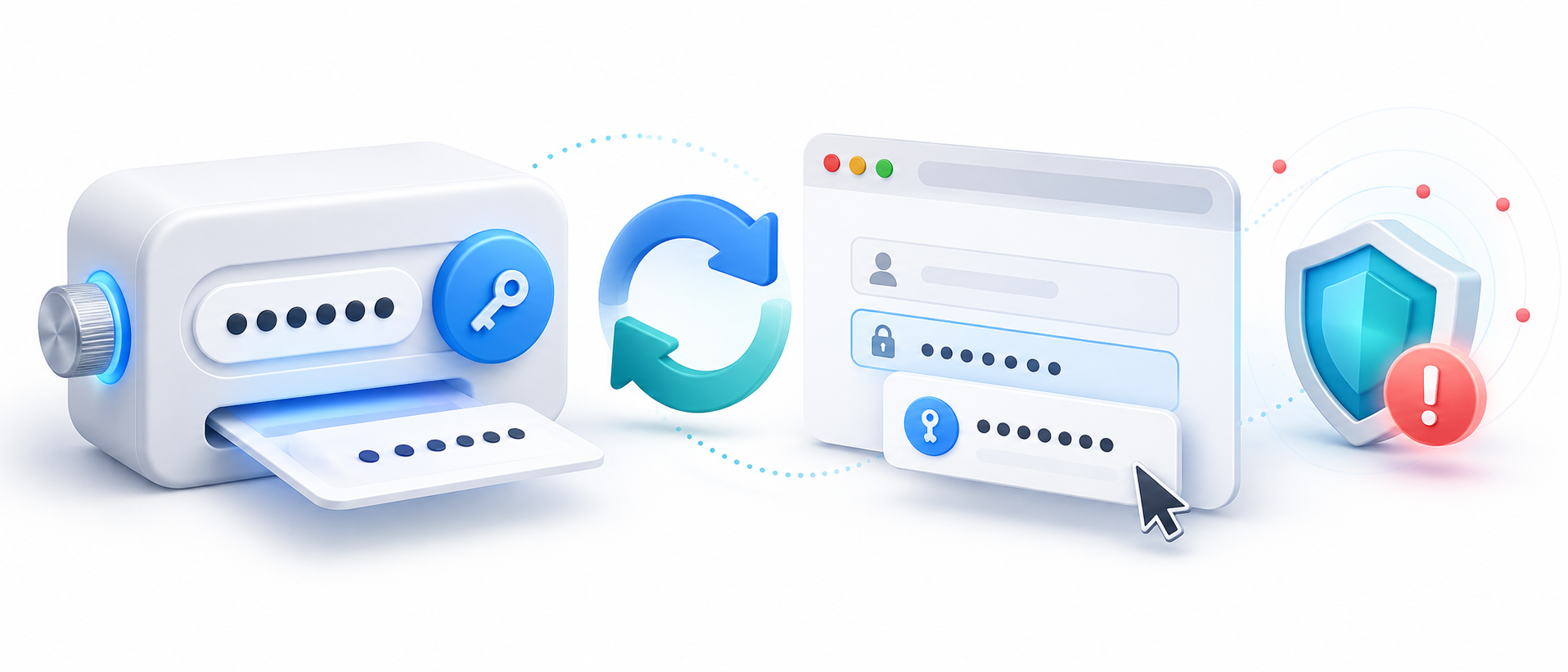
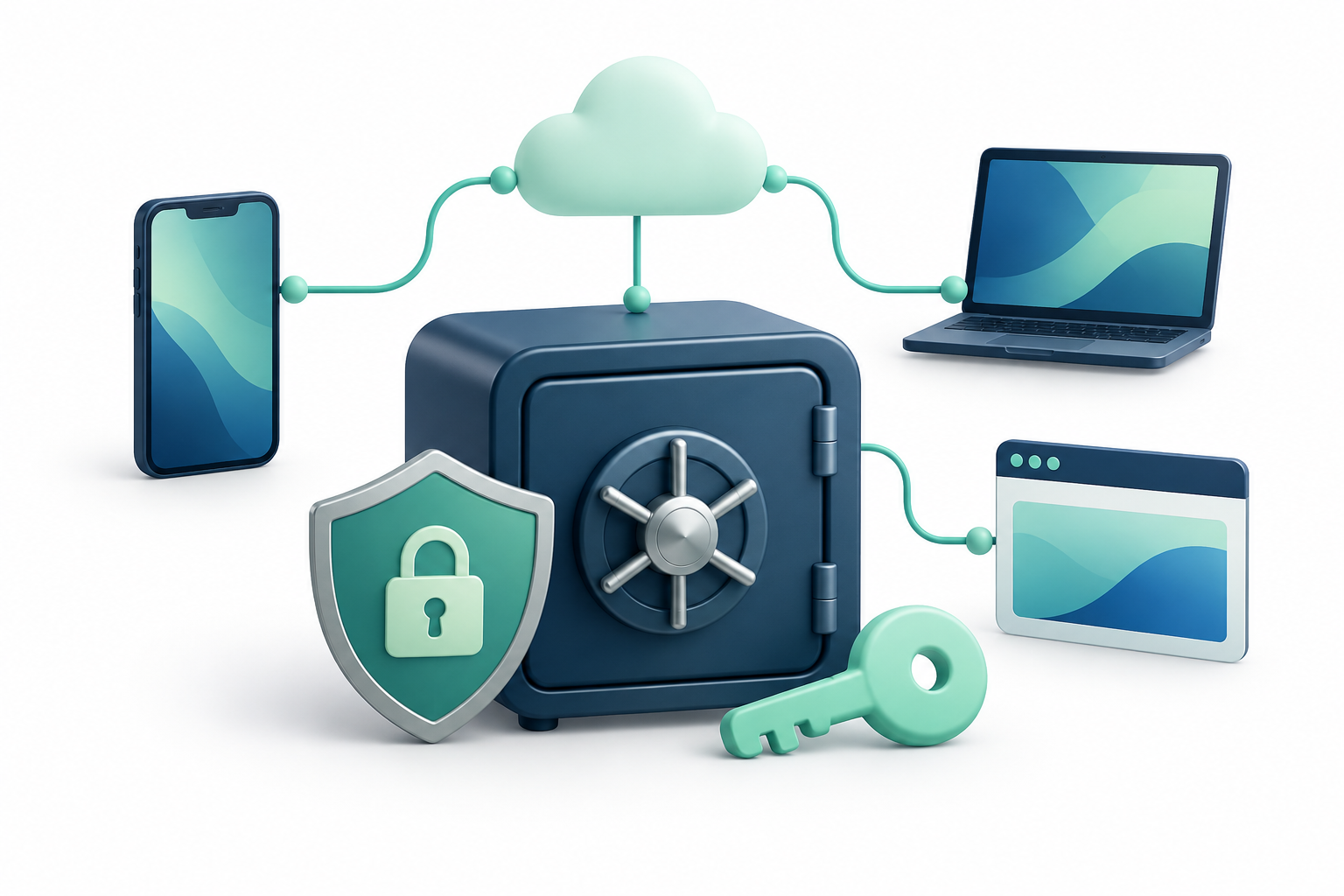
A passkey lets you sign in with a device-held digital key instead of typing the same reusable password.
Check that your important websites, devices, browsers, and credential manager all support the passkey workflow you need.
Before relying on passkeys, test another-device sign-in and recovery, and keep a strong fallback for services that still require passwords.
This article explains the trade-offs behind passkey compatibility and offers practical steps for choosing a setup. Each technical term is explained in everyday language, with examples you can apply to your own devices, family, or team.
Questions to Compare
Decision area
What to verify
Why it matters
Service support
Check passkeys on your key accounts, not only in a product feature list.
The service must support them too.
Device and browser fit
Test creation, sign-in, and cross-device approval on your actual devices.
Support can differ between operating systems and browsers.
Recovery and migration
Learn how to restore, remove, or move passkeys if a device or provider changes.
A convenient sign-in is only useful if you can keep access safely.
Passkeys change the sign-in model
A passkey uses public-key cryptography instead of asking you to type a shared password. The service stores a public key, while the private key stays protected by your device or passkey provider. Sign-in is commonly approved with a device PIN, fingerprint, or face recognition. Passkeys can reduce exposure to phishing, but users still need a clear way to reach their accounts when a device is lost.
A passkey is a sign-in credential based on a pair of digital keys rather than a password you type. The website keeps a matching public key; the secret part stays with your device or credential manager. In plain English, the site can check that you have the right key without asking you to send a reusable secret that could be copied from a fake login page.
Check compatibility across your real setup
Before migrating, list the phones, computers, operating systems, and browsers you use. Passkey compatibility can depend on the service, the device platform, and whether credentials sync through an account or remain device-bound. Check how a new phone is added, whether a second device can approve sign-in, and whether you can use a security key as a backup. Test with a low-risk account first.
Compatibility is more than seeing a “passkey” button. Check that the websites you actually use support passkeys, and that your phone, computer, browser, and password manager can create and use them. Some passkeys are synchronized through an account so they can appear on your other devices; others are tied to one device or a hardware security key. Confirm which type you are creating and how it is backed up.
Understand where passkeys are stored
Some operating systems sync passkeys within an ecosystem; some password managers can store and synchronize them across platforms. These approaches differ in portability and recovery. Find out whether an exported vault contains passkeys and what happens if your provider account is locked. Do not assume that a password manager automatically makes every passkey portable to every browser. Verify the actual flow you will use.
Plan for a lost or replaced device before making passkeys your only sign-in method. Confirm whether your credential manager can restore or synchronize them, and keep the service’s official recovery route available. If the account still allows password fallback, protect that password with a unique generated value and MFA; a weak fallback can undermine the safer sign-in method.
Keep recovery and account security in view
Passkeys can reduce password-related attacks, but the account still has recovery channels such as email, phone, backup codes, or support processes. Secure those channels with unique passwords and MFA. Review the service’s account recovery policy before removing every alternate sign-in method. Maintain at least one recovery route you understand, especially for critical accounts.
Test the full journey: create a passkey, sign in from a second device, use it in the browser you normally use, and find the recovery or removal steps. Also check whether the passkey can be moved or exported if you change providers. Reviews may describe a product as supporting passkeys, but that does not guarantee every browser, account, or device combination works the same way.
A gradual migration works better
Enable passkeys on important services that support them, keep a password manager for accounts that still need passwords, and test cross-device access before retiring old credentials. A dedicated password manager guide from the NCSC can help assess vault basics. Explore more technology explainers at HYPETRENDER.
Example: a student creates a passkey on a phone but later needs to sign in to a campus service from a borrowed laptop. The experience depends on whether the phone can approve the login or the passkey is available through a synced manager. Test this before travel or exam registration, and keep a safe fallback for services that do not support passkeys yet.
Key Terms in Plain English
Public/private key pair
Two related digital keys: the site stores the public part, while the secret private part proves it is really you.
Synchronized passkey
A passkey copied securely through a credential account so it can be available on more than one device.
Device-bound passkey
A passkey kept on one device or security key; losing that item may require another account-recovery route.
Fallback
A different way to sign in, such as a password or recovery code, if the passkey cannot be used.
Practical Checklist
List the services where you want to use passkeys.
Test the same passkey workflow across your phone, computer, and browser.
Keep a secure fallback and learn account recovery before removing passwords.
Keep the decision proportional to your needs. Test the workflow before relying on it, and revisit it when your devices, household, or organization changes.
Use a different, randomly generated password for each account so one breach does not expose your other logins.
Protect the vault with a strong, unique master password and an extra sign-in check; decide how you would recover access before an emergency.
Choose cloud sync or local storage based on your devices and backup habits, and share only the specific credentials other people need.
How to Use This Password Manager Guide
A password manager guide is most useful when it explains the trade-offs behind the ratings, not just which brand tops a list. Across consumer advice, university guidance, public-sector checklists, and product reviews, eight questions keep returning: how the vault is protected, where it lives, how users recover access, and whether the tool fits daily habits. Use this password manager guide to compare those fundamentals before you move credentials into any service.
A password manager can make unique passwords practical, but it also concentrates sensitive information in one vault. No product removes every risk. The goal is to choose a model you can secure, recover, and use consistently, then configure it deliberately.
The eight decision areas at a glance
Area
Question to ask
Why it matters
Security
How is vault data encrypted and independently reviewed?
Protection depends on design, implementation, and maintenance.
Storage
Do you need cloud sync or local-only access?
Convenience and availability come with different backup and dependency risks.
Recovery
What happens if the master password is lost?
Strong privacy can make recovery difficult or impossible.
Automation
Can it generate, fill, and audit credentials safely?
Useful automation turns stronger habits into a routine.
Usability
Does it work across your devices and browsers?
Security controls only help when people keep using them.
Sharing
Can you share selected items without exposing the whole vault?
Households and teams need scoped access.
Governance
Can an organization enforce policies and review access?
Business use requires visibility and lifecycle controls.
Cost
Which features are free, paid, or tied to a plan?
Price should match the number of users and real needs.
1. Security architecture and trust
Start with the vault’s security model. Ask whether credentials are encrypted before they leave your device, how keys are derived from the master password, and whether the provider can decrypt stored data. “Zero knowledge” is a design goal, not a guarantee that every component is flawless. A password manager guide should also look for independent security assessments, clear vulnerability-disclosure channels, timely patching, and a history of explaining incidents.
Open-source code can make inspection possible, but publication alone does not prove that software has been reviewed or deployed safely. Likewise, an audit is a time-bounded assessment, not a permanent certification of safety. Compare the scope and recency of reviews, the company’s data-retention practices, and its response process. Treat claims such as “military-grade” as marketing unless they are backed by specific, verifiable details.
In plain English: “At rest” means a vault is saved on your phone, computer, or a server. “In transit” means it is moving between devices. Encryption is like scrambling a message so someone who intercepts it cannot read it without the right key. “Zero knowledge” means the provider is not supposed to hold that key. Check what is encrypted, including saved website details, and how the provider responds to security flaws and software updates. These design choices reduce risk; they do not make any product impossible to attack.
For example, a service may encrypt the password contents but leave some account or device information visible to operate the service. Ask what sensitive fields are protected, whether an independent review covers the current version, and whether security fixes reach users promptly.
2. Cloud sync versus local storage
Cloud-synced vaults make credentials available across phones, computers, and browsers, and can help when a device is lost. They also depend on an account, a service, and a functioning sync path. Local or offline vaults reduce reliance on a provider’s server and can suit users who prioritize offline access, but they shift responsibility for backups, device migration, and safe file handling to the user.
There is no universally safer choice. In this password manager guide, treat storage as a resilience question: how many devices need access, how often will you be offline, and can you restore a backup if a laptop fails? Check export formats and test a recovery copy before relying on a vault. Keep any exported file protected, because an unencrypted export can expose every saved credential. A sound password manager guide makes the backup owner explicit.
Cloud synchronization and backup are different jobs. Sync copies current changes between devices; a backup is a separate copy you can restore if the main vault is deleted or damaged. An offline vault may be an encrypted database file that does not automatically sync or back up. If you use one, close it before opening it on another device, keep a second protected copy, and test restoring it. Check both the stored vault and data moving between devices, and enable multifactor authentication on cloud accounts.
Example: A student who uses a laptop and phone may prefer cloud sync for everyday access, but should still know how to get in if the phone is lost. Someone choosing a local file should know where its backup is and how to restore it before the laptop fails.
3. Master-password security and recovery
The master password is the key to a high-value collection. Make it long, unique, and memorable, and never reuse it on another account. Turn on multifactor authentication for the vault itself, preferably with a method that remains available if your phone is lost. Some services offer biometrics for convenient unlocking; these normally complement, rather than replace, the underlying account protection.
Recovery creates a real trade-off. A provider that cannot decrypt a zero-knowledge vault may also be unable to restore it when the master password is forgotten. Learn how emergency access, recovery codes, trusted contacts, and new-device setup work before an emergency. Store recovery material separately from the device and account it protects. A practical password manager guide asks not only “Can I lock the vault?” but also “Can I regain access without weakening it?” A complete password manager guide treats recovery as part of security, not support alone.
The “master password” is the secret you remember; the “decryption key” is the digital key that unlocks the scrambled vault data. Some systems derive that key from the master password. In a zero-knowledge setup, forgetting the master password may mean the provider cannot restore the vault. Other recovery routes may involve a trusted contact, a second signed-in device, or an organization administrator. Find out who can trigger recovery and whether they can read stored items.
MFA and recovery are separate: MFA adds another sign-in check, while recovery helps when a password, device, or second factor is unavailable. Save backup codes or register a second factor separately from your phone. Do not assume customer support can reset the master password without affecting privacy.
4. Password hygiene and automation
The basic payoff is the ability to use a different, randomly generated password for each account. A generator should let users create long credentials that the target service accepts. Autofill and autosave can lower friction, but confirm that the extension recognizes the correct website before filling a login. Avoid approving unexpected prompts or filling credentials into lookalike domains.
Look for a vault audit that flags reused, weak, or exposed passwords and explains how to fix them. Breach alerts and dark-web monitoring may be useful extras, but they do not replace changing a compromised password or securing the affected account. Use this password manager guide to separate daily essentials, such as generation and reliable autofill, from premium features you may never need.
A “unique” password is not just the same phrase with a different final digit. If a leaked login is tried automatically on other websites, that attack is called credential stuffing. Use a generator to make unrelated passwords, and respond first to warnings about reused or exposed credentials. A password-health score is a prompt to investigate, not proof that every account is safe. Change a password when it is exposed or at risk; routine forced changes can lead people to predictable variations.
Autofill should offer a saved login only on the website where you stored it. Pause if a sign-in page has a misspelled or extra word in its address. A password manager can help notice a mismatch, but people should still check the site before approving a prompt.
5. Usability, compatibility, and passkeys
Check support for every operating system, browser, and mobile device you actually use. The migration path matters too: importing an existing vault, handling duplicate entries, exporting data, and adding a new device should be understandable. If setup is confusing or sync is unreliable, people may fall back to reused passwords. Usability is therefore part of security, not a cosmetic bonus. A practical password manager guide compares workflows on the devices people already use.
Built-in browser and operating-system managers can be convenient, especially inside one ecosystem. Dedicated tools may offer broader sharing, auditing, or cross-platform support. Compare the protections and recovery options rather than assuming that a standalone app is automatically better. Passkeys add another dimension: they can replace passwords for supported sign-ins, while a manager may still store passkeys alongside other credentials. This password manager guide treats passkeys as a complementary transition, not a reason to ignore account recovery or device compatibility.
A passkey is a sign-in method based on a digital key pair instead of a reusable password. The website keeps a matching public key, while the secret part stays on a device or in a credential manager. Some passkeys can sync to your other devices; others stay on one device or security key. Before relying on them, test the services, browsers, and devices you actually use, and learn the recovery path if a phone is lost. Keep any password fallback unique and protected.
Testing should cover the whole routine: import a few logins, create a passkey if supported, use autofill on phone and computer, add a new device, and locate the export or recovery steps. Product reviews often choose different “best” tools because they test different devices and value usability, free access, sharing, or business controls differently.
6. Family and team sharing
Sharing should be selective. A household may want to share streaming or utility logins without giving every member access to personal banking credentials. Look for separate users, shared collections, revocable permissions, and a clear way to remove someone who no longer needs access. Confirm whether secure sharing is included in a free plan or reserved for family and business tiers.
For teams, avoid passing passwords through email, chat, or spreadsheets. Assign access by role, review it when responsibilities change, and remove access promptly when someone leaves. This password manager guide favors tools that make the safe process easier than copying secrets into an unmanaged channel.
When possible, use separate accounts or delegated access instead of sharing one password. That makes it easier to see which person acted and to remove one person without disrupting everyone. If a shared password is unavoidable, share only that entry with named users, keep it separate from personal items, and check whether the manager records who accessed it and when. Remove access when someone leaves and update the shared password if they may still know it.
Example: Housemates might share a utility login without seeing one another’s banking credentials. At work, a named service account or delegated permission is usually easier to audit than sending a password through chat.
7. Enterprise governance
Organizations need more than a shared vault. Evaluate administrator controls, enforced security policies, directory integration, audit trails, event logs, and visibility into who can access each credential. Separate personal vaults from company-managed credentials, define ownership for service accounts, and plan what happens when an employee changes roles or leaves.
Procurement teams should test account recovery, data export, incident communication, and the process for reporting and patching vulnerabilities. These controls support oversight, but they do not replace identity management or least-privilege design. A password manager guide for business should distinguish consumer convenience features from controls that an administrator can verify and enforce. A business password manager guide also tests joiner, mover, and leaver workflows.
Look at the administrator’s real powers. A well-scoped admin may manage shared company credentials and trigger a reset without reading an employee’s private vault. Plan a joiner/mover/leaver process: grant access when someone starts, adjust it when their duties change, and remove it promptly when they leave. Keep work and personal vaults clearly separate.
Useful audit records can include vault access, which shared item was viewed or used, new-device enrollment, password resets, failed unlock attempts, and permission changes. Decide who reviews those records and what they do when something looks wrong. A log that nobody checks is not an effective control.
8. Price and choosing the right fit
Free tiers can be enough for an individual, but limits may apply to devices, sharing, storage, or support. Family plans spread a subscription across multiple users; business plans may add administration and policy tools. Compare the renewal price, trial conditions, device limits, and which features require an upgrade. Pricing pages change, so verify current terms before buying.
Choose by use case rather than by a single “best overall” label. A privacy-focused user may value local control and transparent security practices; a family may prioritize easy sharing and recovery; a small business may need role-based access and audit logs. A password manager guide should help readers identify their own requirements before comparing brands or accepting a review site’s ranking.
Calculate the total before choosing. For example, a hypothetical plan at $4 per person per month for 10 users, billed annually, is $480 before tax for the year; a multi-year discount may require a larger upfront payment. Check seat minimums, taxes, renewal price after a promotion, device limits, sharing, support, and whether SSO or audit features cost extra. “Monthly equivalent” may still mean paying for a year or more at once.
The comparison pages in your research do not agree on one overall winner. Some prioritize beginner-friendly apps, others free access, family sharing, privacy, or business administration. Review scores and community tables are useful clues, not independent proof of security. Look at how each reviewer tested the tools, when the page was updated, and whether the price is an introductory offer.
Key Terms in Plain English
Encryption
Scrambling information so it is unreadable without the correct digital key.
MFA
Multi-factor authentication: proving it is you in more than one way, such as a password plus a security key or code.
Passkey
A sign-in credential based on a digital key pair, so you do not type a reusable password.
Least privilege
Giving someone only the access needed for their task, rather than the whole vault.
SSO
Single sign-on: using an organization’s existing login to reach approved work tools.
SCIM
A standard that can automatically add or remove work accounts when people join or leave.
Credential stuffing
Trying passwords leaked from one website on other websites where the same person may have reused them.
A practical decision framework
Before moving your vault, write down the devices and people who need access, the accounts you most need to protect, and how you would recover after losing your primary device. Then compare the security model, sync choices, recovery path, everyday workflow, sharing controls, governance needs, and total cost. For a neutral buyer checklist, consult the official password manager buyer’s guide.
Test the setup with a small group of accounts first. Enable multifactor authentication, save recovery information safely, generate unique passwords for important accounts, and verify that autofill works only on the right domains. Once the process feels reliable, migrate the rest in stages and remove old, insecure copies.
The strongest choice is not necessarily the one with the longest feature list. It is the vault whose security model you understand, whose recovery plan you can execute, and whose routine you will maintain. Use this password manager guide as a checklist, then revisit your decision when your devices, household, or organization changes.
Read More News
Explore more practical technology coverage on HYPETRENDER.