Quick Summary
- Cloud sync makes one encrypted vault available on several devices; a local vault keeps its main file under your control.
- Sync is not a backup. Check protection while data is stored and moving, and test that you can restore a separate backup.
- Local storage needs your own safe backup and recovery plan; cloud access needs strong account protection and a plan for a lost device.
This article explains the trade-offs behind cloud password storage and offers practical steps for choosing a setup. Each technical term is explained in everyday language, with examples you can apply to your own devices, family, or team.
Questions to Compare
| Decision area | What to verify | Why it matters |
|---|---|---|
| Cloud sync | Check device approval, MFA, encrypted transfer, and recovery. | Convenient access on several devices adds account and provider dependencies. |
| Local vault | Check file encryption, backup steps, restore test, and sync conflicts. | More direct control also means more responsibility if a device is lost. |
| Any model | Ask whether stored data and transmitted data are encrypted, and who can recover it. | The practical risk depends on the whole setup, not just storage location. |
What the two models actually mean
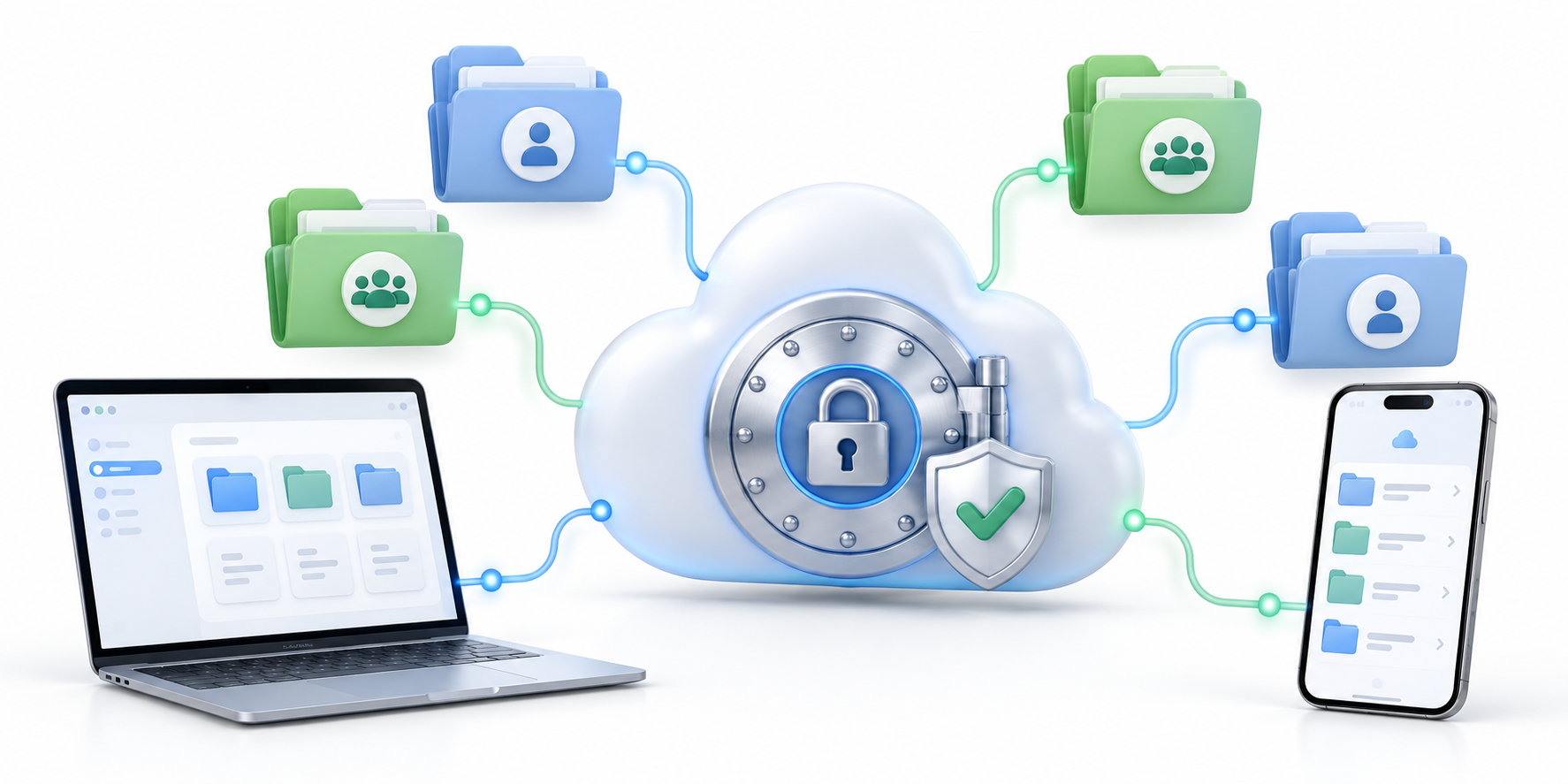
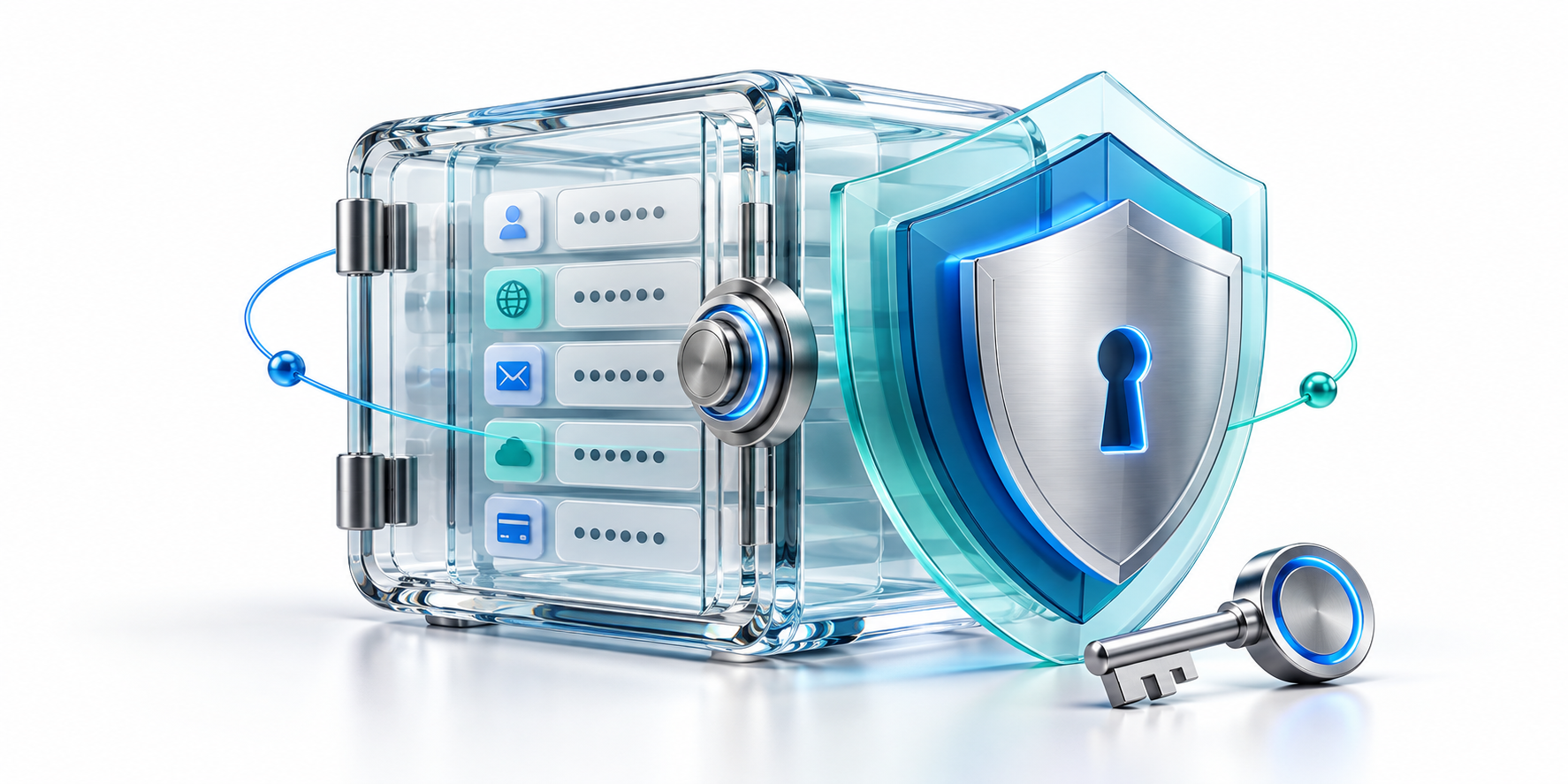
Cloud password storage means an encrypted vault is synchronized through a provider’s service so approved devices can reach the same records. In a well-designed zero-knowledge model, encryption happens on the user’s device and the provider does not hold the key needed to read the vault. Local storage keeps the primary database on a device or file you control; some local tools can still sync through a separate service you configure. The label alone does not tell you how encryption, backups, or account recovery work.
Two kinds of protection matter. “At rest” means the vault file is sitting on a phone, computer, or server; “in transit” means data is moving between your device and a sync service. Ask whether both are encrypted, and whether sensitive details such as saved website addresses are protected too. Encryption is like locking a package before it leaves your device, but the key-handling rules decide who can open it.
Cloud sync: availability with dependencies
The main advantage of cloud sync is continuity. A new phone or a lost laptop is easier to handle when another trusted device can access the same encrypted vault. Sync can also reduce manual copying and version conflicts. The trade-off is reliance on an account, provider availability, network access, and recovery settings. Before choosing cloud password storage, learn how new-device authorization works, what data is synchronized, and whether recovery can weaken the vault’s encryption.
Cloud sync is not the same as a backup. Sync copies the latest changes across devices, so an accidental deletion or corrupted record can also spread. A separate backup is a recoverable older copy. Check how a new phone is approved, whether MFA is available, and what happens if the provider is temporarily unavailable. Keep a recovery option that does not depend on the same lost phone.
Local vaults: control with more responsibility
An offline vault can reduce the number of services involved and provide access without a connection. But a single laptop is also a single point of failure. You must protect the database file, keep backups current, and test how to restore it on another device. An unencrypted export can expose every saved login, so secure the backup separately and delete temporary exports. Local storage is not automatically safer if the only copy is lost or left unprotected.
An offline vault is often a single encrypted database file. Some file-based tools do not synchronize or back it up automatically. If you move that file between devices, close the vault before opening it elsewhere and watch for duplicate or conflicting copies. Keep at least one protected backup in a different place from the main device, and test restoring it before you need it.
A practical resilience checklist
List the devices that need access, how often you travel offline, and who would help if your main device failed. Check export formats, backup encryption, sync conflict handling, and recovery steps. Try restoring a copy before you depend on it. A short written recovery plan is more useful than a theoretical feature list. The right cloud password storage setup is the one whose availability and failure modes you understand.
Before choosing, make a small recovery drill: unlock on each device you plan to use, turn off the network briefly, and restore a backup copy to a test location. Confirm that you can export your records and understand the format. An export may be plain text, meaning the passwords are readable without the vault’s protection, so do not email it or leave it in Downloads.
Choose by risk and routine
For many people, encrypted cloud sync paired with a strong master password, multifactor authentication, and a separate recovery plan is a workable balance. Users who prefer local control should schedule encrypted backups and test them. Either way, keep the vault software updated and avoid sending plain-text exports through email or chat. For a public-sector checklist, see the NCSC password manager buyer’s guide. Explore more practical technology coverage at HYPETRENDER.
Example: a student uses a laptop for assignments and a phone for campus services. Cloud sync may make everyday access easier, but a local vault can still work if the student reliably keeps an encrypted backup and knows how to restore it. The better choice depends on the routine the student can actually maintain, not on the label “cloud” or “offline.”
Key Terms in Plain English
- At rest
- Data saved on a device or server, rather than moving across a network.
- In transit
- Data traveling between a device and a service; it should be protected from being read or changed on the way.
- Zero-knowledge
- A design where the provider is not supposed to hold the key needed to read your vault. It is a design claim to verify, not a magic guarantee.
- Plain-text export
- A file whose contents can be read directly, without unlocking the password vault.
Practical Checklist
- List the devices and offline situations you need to support.
- Check encryption while stored and while syncing, plus MFA for cloud access.
- Make and test an encrypted backup; treat exports as exposed copies.
Keep the decision proportional to your needs. Test the workflow before relying on it, and revisit it when your devices, household, or organization changes.
For neutral guidance, consult the NCSC password manager buyer’s guide. For more practical technology coverage, visit HYPETRENDER.